Excel, Formulas
Jul 1, 2026
What Is the Excel CONCATENATE Function and How Does It Work?
Key Takeaways
- The CONCATENATE function in Excel joins two or more text strings into a single cell, making it easy to combine names, addresses, labels and other data.
- CONCATENATE does not automatically insert spaces or delimiters between values, so you must add them manually within the formula.
- Microsoft has replaced CONCATENATE with the CONCAT and TEXTJOIN functions in newer versions of Excel, though CONCATENATE still works for backward compatibility.
- You can also combine text in Excel using the ampersand (&) operator as a shorthand alternative to CONCATENATE.
What Is the Excel CONCATENATE Function?
The Excel CONCATENATE function is a text function that joins two or more text strings into a single string. It accepts cell references, typed text or a combination of both as arguments, and the result is always a text value. Whether you need to combine first and last names, build a full mailing address from separate columns or join a label with a variable, CONCATENATE handles the task in one formula.
The function accepts up to 255 arguments, and each argument can be a cell reference, a text string enclosed in quotation marks or a number. Learning how to use CONCATENATE in Excel is straightforward once you understand the syntax and a few key behaviors.
CONCATENATE Syntax
The formal CONCATENATE syntax is:
=CONCATENATE(text1, text2, [text3], ...)
- text1 (required): The first text string, cell reference or number you want to join.
- text2 (optional): The second item to join. Although marked optional, you will almost always include at least two arguments.
- [text3], ... (optional): Additional items to join, up to a maximum of 255 arguments.
The total length of the resulting string cannot exceed 32,767 characters. If it does, the formula returns a #VALUE! error.
CONCATENATE vs. CONCAT vs. TEXTJOIN
Microsoft now recommends CONCAT and TEXTJOIN as the modern alternatives to CONCATENATE. While CONCATENATE still works in all versions of Excel for backward compatibility, understanding the differences helps you choose the right tool for the job.
- CONCATENATE: The original function. Joins individual text strings or cell references but does not accept cell ranges. Available in all Excel versions.
- CONCAT: The direct replacement for CONCATENATE. Works the same way but also accepts cell ranges (e.g., A1:A5) as arguments, saving you from listing each cell individually. Available in Excel for Microsoft 365 and Excel 2019 and later.
- TEXTJOIN: A more powerful option that lets you specify a delimiter (such as a comma or space) and choose whether to skip empty cells. Ideal when you need to join many cells with a consistent separator. Available in Excel for Microsoft 365 and Excel 2019 and later.
- Ampersand (&): A shorthand operator that works like CONCATENATE without requiring a function name. Useful for quick formulas with a small number of values.
| Function | Syntax | Accepts Ranges? | Delimiter Support | Availability |
|---|---|---|---|---|
| CONCATENATE | =CONCATENATE(text1, text2, ...) | No | No | All Excel versions |
| CONCAT | =CONCAT(text1, text2, ...) | Yes | No | Excel 2019+, Microsoft 365 |
| TEXTJOIN | =TEXTJOIN(delimiter, ignore_empty, text1, ...) | Yes | Yes | Excel 2019+, Microsoft 365 |
| Ampersand (&) | =text1 & text2 | No | No | All Excel versions |
If you are working in a newer version of Excel, CONCAT or TEXTJOIN will give you more flexibility. If you need your workbook to remain compatible with older versions, CONCATENATE is still a reliable choice.
Here is a basic example of the CONCATENATE function in action. If you have the customer's first name in Column A and the last name in Column B, you could use "=CONCATENATE(A3," ",B3)" to produce a string containing first name and last name.
Be aware that when you join two strings, Excel does not insert a space or any punctuation between the two. You must do it by inserting " " between the two strings, as shown above, or by replacing that space with a hyphen or other punctuation. The quotation marks are required.
Concatenating Numbers and Dates
The CONCATENATE function converts numbers to text. If you are joining the number 1047 and the string "Maple Street," the formula "=CONCATENATE(1047," ","Maple Street")" works just fine, producing "1047 Maple Street."
With decimals or with dates, however, the result might be unintelligible. Take this example:
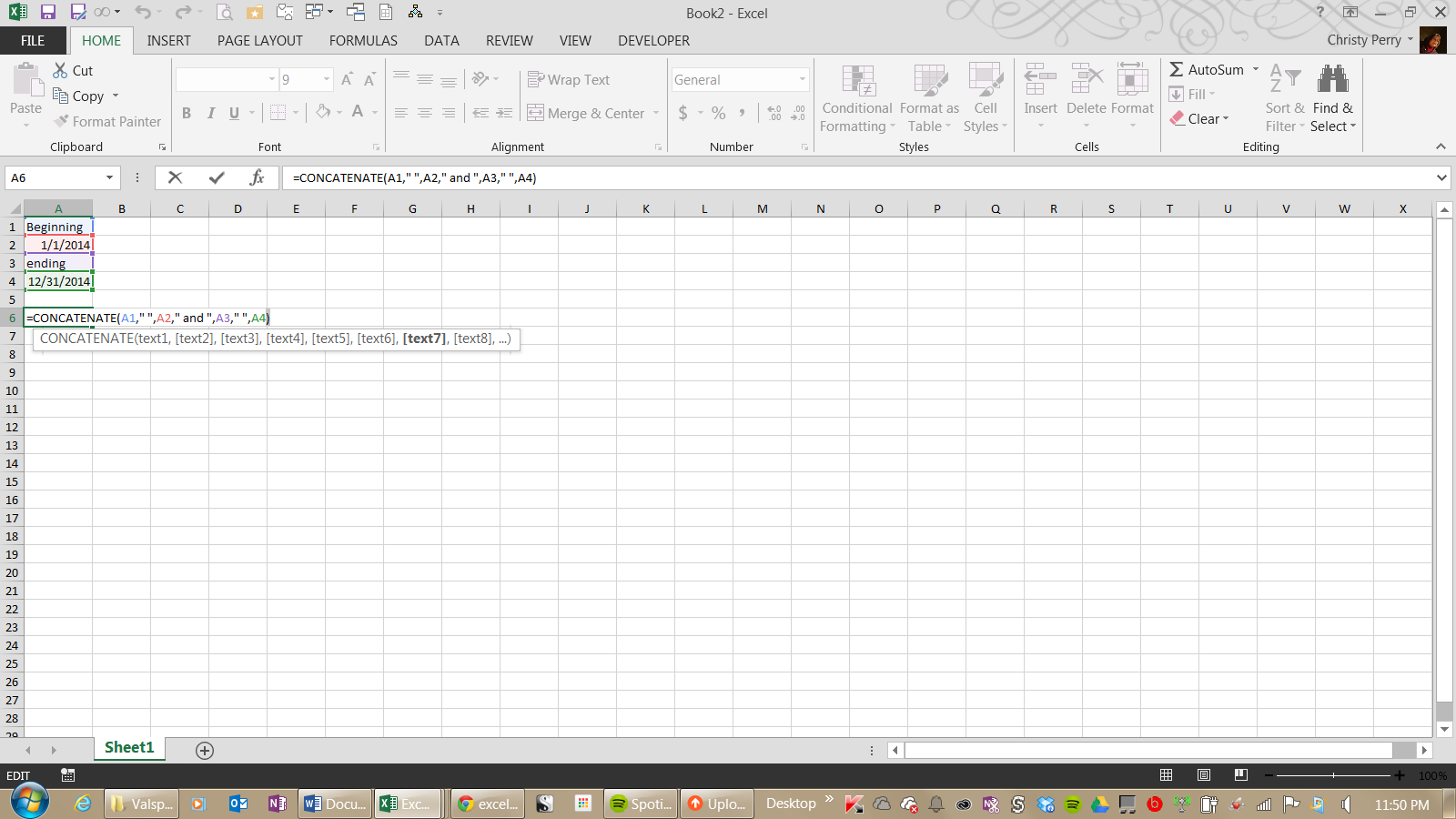
Note the spaces and the conjunction "and" added between the variables. Nevertheless, the formula results in something like "Beginning 41640 and ending 42004." The two dates turn into numbers like 41640 and 42004.
How Excel Formulates Dates
Excel stores all dates as numbers internally, displaying them as dates to make it easier for humans to read — a behavior that also affects how date or time data appears in charts. The CONCATENATE function knows nothing about date formats, however, so it displays the date in Excel's internal date-time code.
To solve this problem, use an additional function called TEXT, which converts a number to text using a specified format. While we will discuss TEXT thoroughly in another post, you should be aware of two format codes that you'll want to use with the CONCATENATE function:
- To format a number rounded to a specified number of decimal places, use the format string "#,##0.00". Each 0 is a number that must be displayed, even if it is zero. Each # is a number that can be displayed if there is a digit, but will be left out if there is no digit. Using this format string, "=TEXT(39401.03895,"#,##0.00")" displays as "39,401.04," and "=TEXT(10,"#,##0.00")" displays as "10.00."
- To format a date, use "m" for the month, "d" for the day, and "y" for the year, or you can spell out the month names with "mmmm." For example, "=TEXT(41640,"m/d/y")" appears as "1/1/14," and "=TEXT(41640,"mmmm d, yyyy")" appears as "January 1, 2014."
Returning to the example above, enter the formula with TEXT functions on the dates:
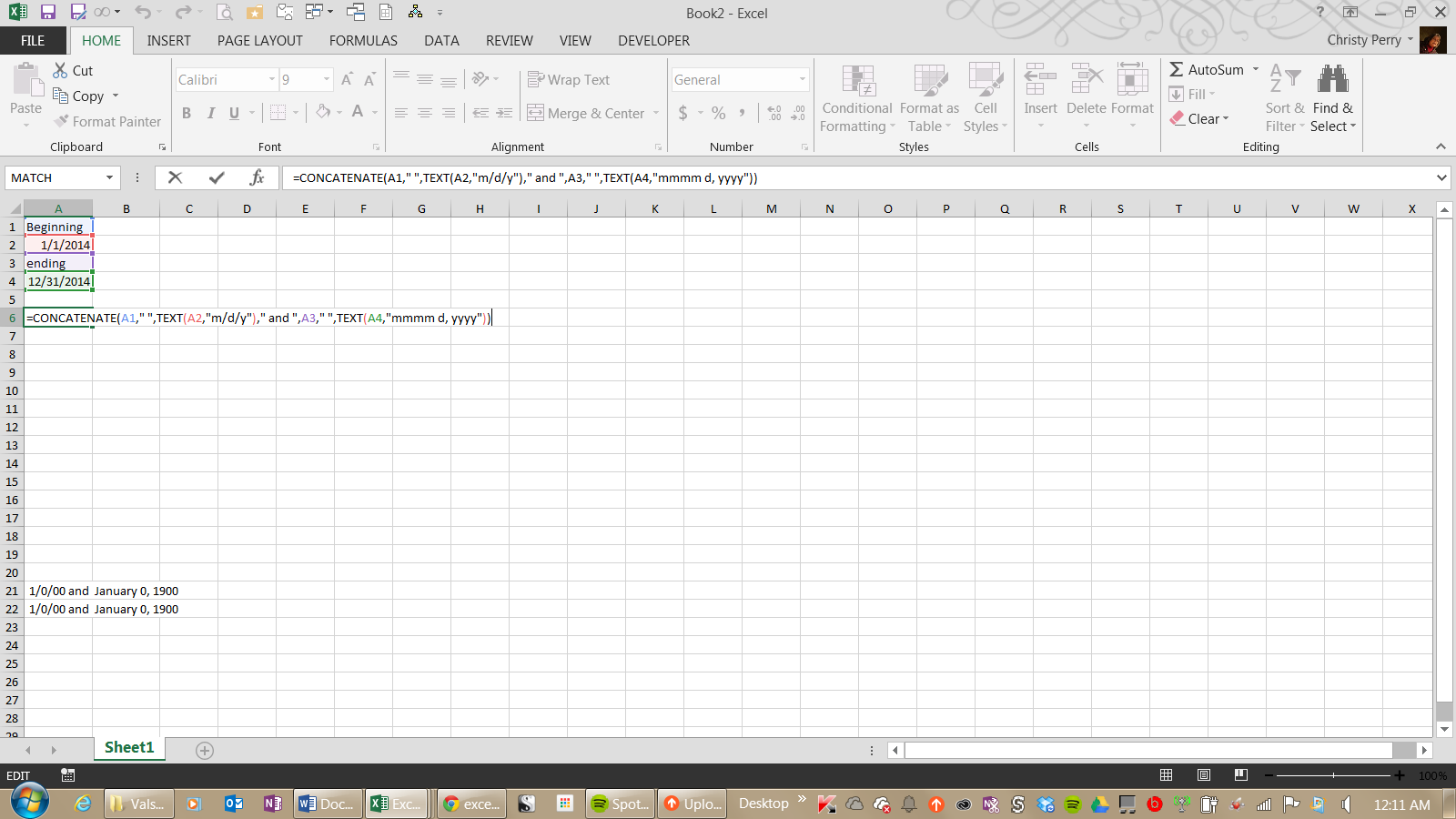
CONCATENATE as shown above produces something like "Beginning 1/1/14 and ending December 31, 2014."
Using the Ampersand (&) Operator as a Shortcut
Do you really need CONCATENATE? Not really, because Excel provides a nifty shortcut.
You can join strings together by placing an ampersand ("&") between them. This works exactly like the CONCATENATE function, but without having to type an eleven-character function name.
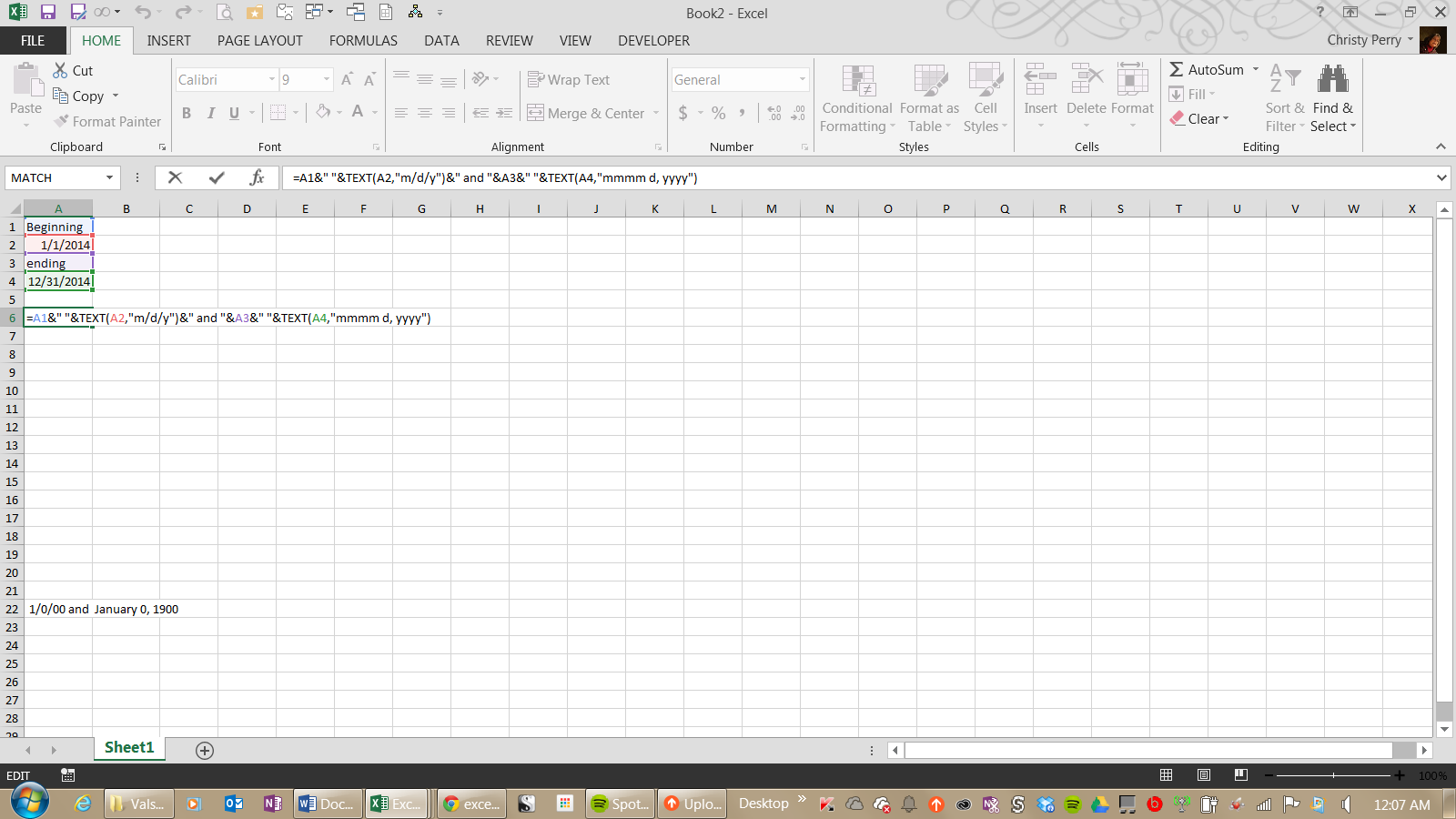
This produces exactly the same result as the previous version with the CONCATENATE function, but it's shorter and easier.
Common Problems and Troubleshooting
Even a straightforward function like CONCATENATE can produce unexpected results. Here are the most common issues and how to fix them:
- Missing spaces between values: CONCATENATE does not add spaces automatically. If your result reads "JohnSmith" instead of "John Smith," add a space as a separate argument: =CONCATENATE(A1," ",B1).
- Dates displaying as serial numbers: Excel stores dates as numbers internally, so concatenating a date cell produces a number like 45292 instead of a readable date. Wrap the cell reference in the TEXT function with a format code, such as =CONCATENATE("Date: ",TEXT(A1,"m/d/yyyy")). The Concatenating Numbers and Dates section above covers this in detail.
- #VALUE! error: This error typically occurs when the resulting string exceeds 32,767 characters or when an argument is invalid. Check that you have not exceeded the 255-argument limit and that all cell references are correct.
- Number formatting lost: Leading zeros, decimal places and currency symbols disappear when numbers are concatenated because CONCATENATE converts them to plain text. Use the TEXT function to preserve formatting, such as =TEXT(A1,"00000") for a five-digit code with leading zeros.
- Result is text, not a number: The output of CONCATENATE is always a text string, even if every argument is a number. If you need to use the result in calculations — whether basic arithmetic or financial formulas — convert it back to a number using the VALUE function.
Next Steps
Now that you know how to join strings together, you can use them anyplace you would use any other text—report fields, headers, cells with conditional formatting, or even conditions for IF or VLOOKUP statements. Concatenation is a convenient way to join multiple variables in one string or to join a label with a variable.
To take your skills further, consider these next steps:
- Explore the CONCAT and TEXTJOIN functions covered in the comparison section above for more flexible ways to concatenate in Excel.
- Practice combining CONCATENATE with SUM, IF and VLOOKUP to build dynamic labels and conditional text strings.
- Check out Pryor Learning's Excel training courses to deepen your spreadsheet skills and learn advanced formulas, data analysis techniques and more.