Management, Supervision & Leadership
Jul 1, 2026
Absolute Reference in Excel: How to Lock Cell References in Formulas
Key Takeaways
- An absolute reference in Excel uses the $ sign to lock a cell address so it does not change when you copy or drag a formula to other cells.
- Excel supports three reference types: relative (A1), absolute ($A$1) and mixed ($A1 or A$1), each serving a different purpose.
- Press F4 after clicking on a cell reference in the formula bar to quickly toggle between relative, absolute and mixed reference types.
- Absolute references are essential when a formula needs to point to a fixed value, such as a tax rate, discount percentage or conversion factor.
There might be times when you do not want Excel to adjust all or part of your formula automatically. For example, you may have a table of standard multipliers that you use in the formula and want the same cell to always be used to multiply. The answer: an absolute reference.
You can create an absolute reference by using $ in Excel formulas. Insert $ to the left of the cell coordinate that you want to stay the same. If you want C2 to remain the same, then C2 becomes $C$2.
An absolute reference in Excel locks a specific cell address so it stays constant no matter where you copy or move your formula. This is the opposite of a relative reference, which shifts automatically based on the formula's new position. Understanding the difference between these reference types is one of the most important skills for building reliable spreadsheets.
The sections below walk through all three Excel reference types, show you how to create an absolute reference step by step and provide practical examples you can apply right away.
Understanding Cell References in Excel
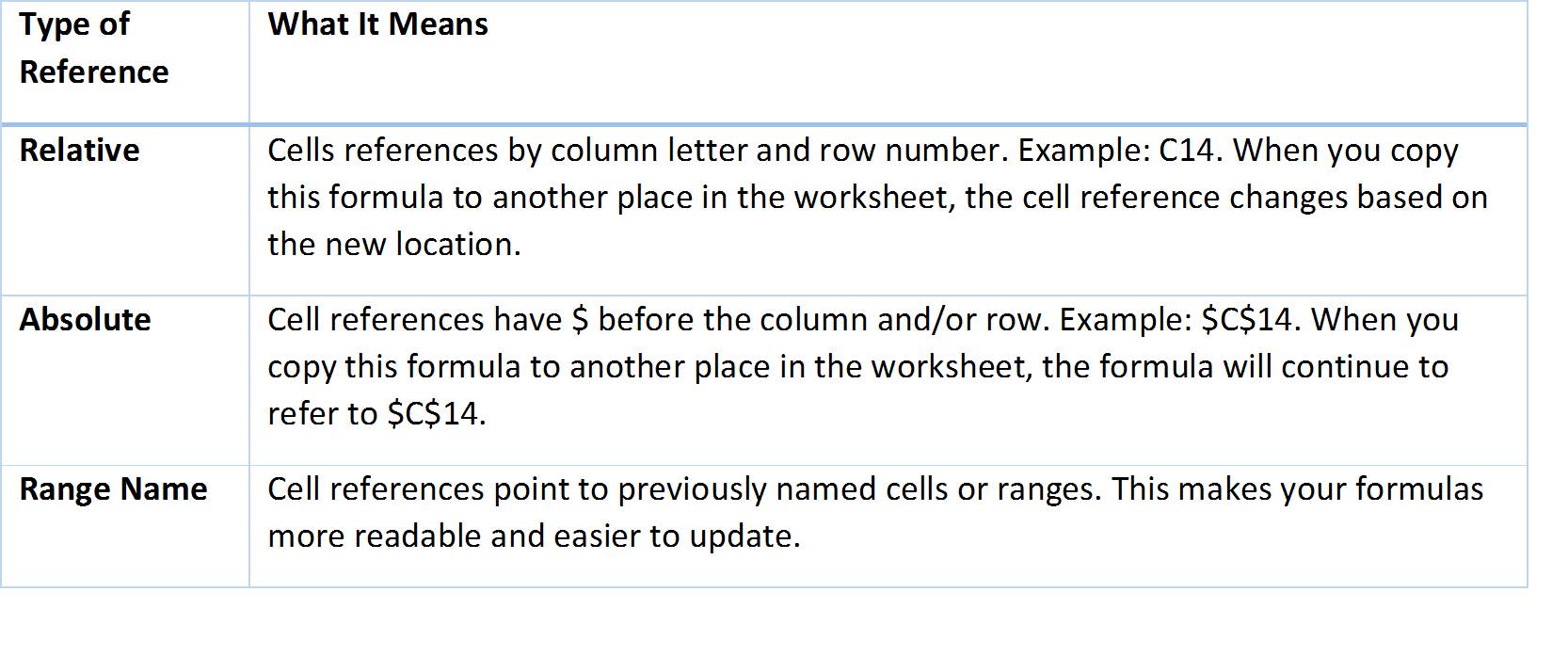
Most of your formulas will refer to data in various cells in your worksheet. Your formula can refer to a cell's data in one of the following ways:
A cell reference tells Excel which cell or range of cells to pull data from when calculating a formula. Excel uses three reference types, and each one behaves differently when you copy a formula to a new location. Choosing the right type ensures your formulas return correct results every time.
Relative References
A relative reference is the default reference type in Excel. It uses a plain cell address like A1 with no dollar signs. When you copy or drag a formula that contains a relative reference, both the column letter and the row number adjust automatically to match the formula's new position.
For example, if cell C1 contains the formula =A1+B1 and you copy it down to C2, the formula becomes =A2+B2. Excel shifts the references by the same number of rows and columns you moved. This behavior is useful for standard calculations that should repeat across a range of data.
Absolute References
An absolute reference locks both the column and the row so the reference does not change when you copy the formula. You create one by placing a $ sign before the column letter and before the row number. C2 becomes $C$2, and that address stays fixed regardless of where the formula is pasted.
For example, if cell C1 contains the formula =$A$1*B1 and you copy it down to C2, the formula becomes =$A$1*B2. The reference to A1 remains constant while B1 adjusts as expected. This is exactly the behavior you need when a formula must always point to the same cell.
Mixed References
A mixed reference locks either the column or the row, but not both. There are two variants:
- $A1 (column locked): The column stays fixed while the row adjusts when the formula is copied.
- A$1 (row locked): The row stays fixed while the column adjusts when the formula is copied.
Mixed references are especially useful when building multiplication tables or cross-referencing grids where one axis should remain anchored. For example, in a pricing matrix you might lock the row that contains unit prices (A$1) so the row reference holds steady as you copy the formula across columns.
Comparison of Excel Reference Types
| Reference Type | Syntax Example | Column Adjusts When Copied? | Row Adjusts When Copied? | Common Use Case |
|---|---|---|---|---|
| Relative | A1 | Yes | Yes | Standard formulas that should shift with position |
| Absolute | $A$1 | No | No | Fixed values like tax rates or constants |
| Mixed (column locked) | $A1 | No | Yes | Lookup across rows with a fixed column |
| Mixed (row locked) | A$1 | Yes | No | Lookup across columns with a fixed row |
How to Create an Absolute Reference in Excel
There are two ways to lock a cell reference in Excel: typing the $ signs manually or using the F4 keyboard shortcut.
Manual method:
- Click the cell where you want to enter or edit a formula.
- In the formula bar, type or navigate to the cell reference you want to lock.
- Add a $ sign before the column letter and before the row number (e.g., $C$2).
- Complete the rest of your formula and press Enter.
- Copy or drag the formula to other cells and confirm the locked reference stays fixed.
F4 shortcut method:
- Click the cell containing your formula (or start a new formula).
- In the formula bar, click on the cell reference you want to change.
- Press F4 to cycle through reference types: A1 → $A$1 → A$1 → $A1 → A1.
- Stop when you see the reference type you need and press Enter.
The F4 shortcut is the fastest way to toggle between reference types, and it works in every modern version of Excel. On a Mac, use Command + T or Fn + F4 depending on your keyboard settings.
Practical Examples of Absolute References
Seeing absolute references in action makes it easier to know when to use them. Below are three common scenarios.
Applying a tax rate to a column of prices: Suppose cell B1 contains a tax rate of 8% and cells A2 through A10 list product prices. In cell B2 you would enter =A2*$B$1 and then copy the formula down. The reference to B1 stays locked so every row multiplies its price by the same tax rate.
Using a fixed currency conversion factor: If cell D1 holds an exchange rate and column C lists amounts in one currency, the formula =C2*$D$1 converts each amount while always pointing to the single exchange rate cell.
Calculating commission with a fixed percentage: When a commission rate lives in one cell (for example, E1), sales reps listed in column A can each have their sales total in column B multiplied by =$E$1*B2. Copying the formula down the column keeps the commission rate constant.
Use absolute references whenever your formula needs to point to a value that should not shift:
- Applying a single tax rate, discount or markup stored in one cell to an entire column of values
- Referencing a fixed conversion factor (currency, units of measurement) across multiple rows
- Pointing to a shared constant like a commission rate, an interest rate used in financial formulas or a budget cap
- Building formulas that reference a header row or label column that should not shift
Mastering absolute references saves time and prevents the formula errors that come from references drifting to the wrong cells. For hands-on training that covers these skills and more, explore the Excel courses available from Pryor Learning.