Advanced Excel, Excel
Apr 30, 2026
How to Use Excel Time Formulas to Calculate Hours and Pay
Working with time in Excel can be a problem. Have you ever calculated how long a person was at work and then wanted to multiply that time by an hourly wage? It isn't difficult to fail miserably! But if you know the trick, excel time formulas are easy.
Key Takeaways
- Excel stores time as decimal fractions of a 24-hour day, which is why time formulas can produce unexpected results if you don't format cells correctly.
- To calculate hours worked, subtract the start time from the end time, then multiply by 24 to convert the result into decimal hours you can use in payroll calculations.
- Common Excel time functions like TIME(), TIMEVALUE() and TEXT() give you more control over how time values are created and displayed.
- Formatting is the key to avoiding errors. Setting the right number format before entering formulas prevents most time calculation frustrations, and conditional formatting can further highlight cells that need attention.
Understanding How Excel Stores Time
Before diving into formulas, it helps to understand how Excel thinks about time. Excel represents every date as a whole number called a serial number and every time as a decimal fraction of a 24-hour day. One hour equals one/24, or approximately 0.041667.
For example, 6:00 AM is stored as 0.25 because it falls one quarter of the way through a day. Noon is 0.5, and 6:00 PM is 0.75. When you enter a time like 9:00 AM into a cell, Excel displays it in a familiar format but stores it internally as 0.375.
This is why raw math on time values can produce confusing decimals. If you subtract 8:00 AM from 5:00 PM, Excel returns 0.375, not 9. Understanding this excel time format behavior is the foundation for every time formula in Excel you'll use below.
Essential Excel Time Functions at a Glance
The following excel time functions are the most useful tools for working with time values. You don't need all of them for every task, but knowing what's available helps you pick the right approach.
| Function | Syntax | Description |
|---|---|---|
| TIME() | =TIME(hour, minute, second) | Creates a time value from separate hour, minute and second arguments |
| TIMEVALUE() | =TIMEVALUE("time_text") | Converts a text string representing a time into a numeric time value |
| HOUR() | =HOUR(serial_number) | Returns the hour component (0-23) from a time value |
| MINUTE() | =MINUTE(serial_number) | Returns the minute component (0-59) from a time value |
| SECOND() | =SECOND(serial_number) | Returns the second component (0-59) from a time value |
| TEXT() | =TEXT(value, "format_code") | Formats a numeric value as text using a specified time format code |
| NOW() | =NOW() | Returns the current date and time as a serial number |
With this toolkit in mind, let's walk through a practical payroll scenario step by step.
Setting Up Your Spreadsheet Formatting
First, start with formatting.
- Columns A and B (employee's Time In and Time Out) can be formatted to Time, AM/PM.
- Column C (Hours Worked) should be formatted to a 24-hour time format (e.g., h:mm). This omits the AM/PM markers and creates a true figure to reflect the amount of time passed. You need a true reflection of time passed in order to work with totals accurately.
- Column D (Hours) should be formatted as a number with two decimal places.
Columns E and F should be formatted to Currency or Accounting, your choice.
Now that your formatting is set, let's get into Excel time formula logic.
Calculating Hours Worked with a Time Formula
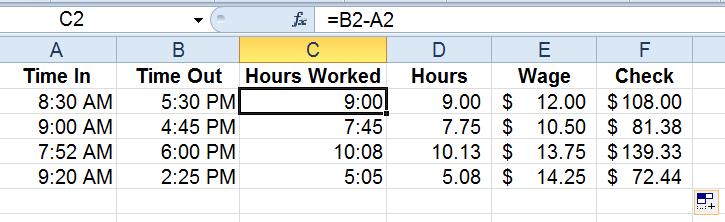
In Column C, enter the formula =B2-A2 to calculate the number of hours worked, as shown below.
Converting Time to Decimal Hours
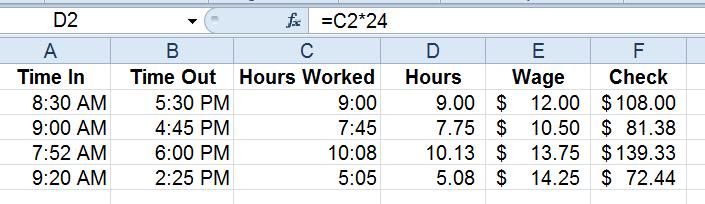
Column D, as mentioned, is formatted to a number with two decimals. It contains the formula =C2*24. This formula is essential because of how Excel stores time internally. Excel stores time values as decimal fractions of a 24-hour day. One hour equals one/24th of a day. Thus, to get a whole number you can use in calculation, you must multiply the value in column C by 24. Think of it like this. With a time like 7:30, C2 would equal 7.50, which is the number equivalent to seven hours and thirty minutes. See Illustration 2.
Subtracting Lunch or Break Time
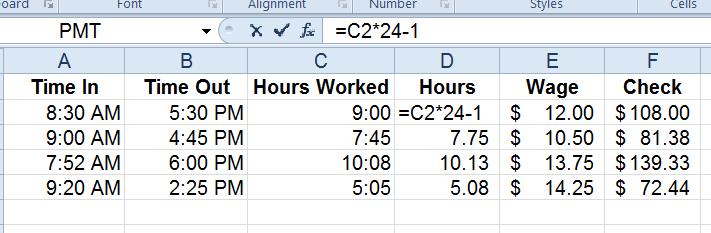
What if your employees have a lunch hour? You can set up your time formula to subtract one hour. See Illustration 3.
Calculating Total Pay
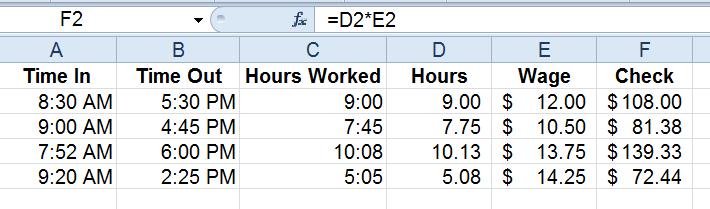
Now that your formatting and time formulas are properly considered and applied, you can multiply Column D by Column E to reach the final paycheck total. If your workbook also requires budgeting or forecasting calculations, Excel finance formulas can extend these same skills.
Troubleshooting Common Excel Time Formula Errors
Even with the right formulas in place, a few common issues can trip you up. Here are the errors you're most likely to encounter and how to fix them:
- #### symbols instead of a result. This usually means the column is too narrow to display the value. Widen the column first. If the symbols persist, your formula may be producing a negative time value, which Excel cannot display in standard time format. Check that your end time is later than your start time.
- Unexpected decimal values instead of a time display. If a cell shows something like 0.375 instead of 9:00, the cell is formatted as a number rather than a time. Right-click the cell, select Format Cells and choose a Time format to correct the display.
- SUM of hours showing the wrong total. When your total exceeds 24 hours, Excel's default time format wraps back to zero. A weekly total of 41 hours might display as 17:00. See the next section for the fix.
- #VALUE! errors in time formulas. This typically happens when one or more cells contain text that looks like a time but isn't stored as a numeric time value. Use the TIMEVALUE() function to convert text entries into proper time values before performing calculations.
How to Handle Time Values Over 24 Hours
If you're summing hours across a full work week, you'll likely exceed 24 hours. By default, Excel's time format resets at 24, so a total of 41 hours and 30 minutes would display as 17:30 instead of 41:30.
To display cumulative hours correctly, apply a custom number format:
- Select the cell containing your SUM formula.
- Right-click and choose Format Cells.
- On the Number tab, select Custom.
- In the Type field, enter [h]:mm:ss and click OK.
The square brackets around the h tell Excel to display the total accumulated hours without resetting at 24. Your 41:30 total will now display correctly. This same technique works with [m]:ss if you need to display total minutes or [s] for total seconds.
Keep Building Your Excel Skills
Mastering excel time formulas saves hours of frustration when you're handling payroll, scheduling or any task that involves tracking durations. You now know how to set up proper formatting, calculate hours worked, convert time to decimal values, deduct breaks and multiply hours by an hourly rate. You also have the tools to troubleshoot the most common errors, handle totals that exceed 24 hours and create a date or time chart to visualize your scheduling data.
These techniques are just the beginning of what Excel can do for your productivity. Pryor Learning offers hands-on Excel training courses that cover formulas, data analysis, pivot tables and more. With PryorPlus, you get unlimited access to Excel courses at every level so you can keep building your skills at your own pace.





