Excel
Sep 30, 2026
How to Use ChatGPT for Excel Formulas and Data Tasks
Key Takeaways
ChatGPT and Microsoft Copilot can generate working Excel formulas from plain-language prompts, saving time on everything from simple averages to complex SUMPRODUCT calculations.
Writing effective prompts requires specificity — include cell references, data ranges and the exact outcome you need.
AI-generated formulas are not always correct. You must verify every formula before relying on the output.
Combining strong Excel fundamentals with AI tools makes you a more efficient and capable spreadsheet user.
How ChatGPT and AI Tools Work with Excel
When we talk about AI in the context of Excel, we're referring to a specific category of technology:
The term describes computer systems that train algorithms on large datasets to discern patterns that could not be otherwise seen by traditional computing. This allows software to perform tasks that mimic human intelligence, such as language understanding, image recognition and decision-making.
OpenAI's ChatGPT (GPT stands for Generative Pre-trained Transformers) is the technology that powers much of today's AI chat interfaces. OpenAI pioneered the capability for software to understand and reply in natural language. Google's Gemini, Adobe's Firefly and Microsoft's Copilot—just to name a very few—use OpenAI's language models on their own data to create tools that their customers can query with a text prompt.
So, how does this help us with Excel?
One of the primary Excel challenges is mastering its extensive library of formulas and functions. Whether it's a simple SUM formula or a complex nested IF statement, users often find themselves stuck or making errors. The mind-boggling advantage of Generative AI language models is that you can just ask a question—in words like you're reading right now—and get an answer. Type: "Create a formula that averages the data in column A and B" and you can get a working function. Just like that.
Mostly.
The confusing disadvantage of Generative AI language models is that they can be horribly, horribly wrong while sounding so confident that you're sure they must be right.
Let's look at some examples of the good and the bad.
Why Use ChatGPT for Excel
ChatGPT for Excel acts as an on-demand ai excel formula generator that translates plain English into working spreadsheet logic. Instead of searching through documentation or memorizing function syntax, you describe what you need and get a formula you can test immediately. Tools like ChatGPT and Copilot for Excel each bring different strengths to the table, but both dramatically lower the barrier to advanced spreadsheet work.
Here are some of the most common use cases for excel ai tools:
Generating complex formulas: Describe a multi-step calculation in plain language and receive a ready-to-use formula with nested functions.
Troubleshooting errors: Paste a broken formula into the chat and ask the AI to identify what went wrong and suggest a fix.
Learning new functions: Ask the AI to explain unfamiliar functions like XLOOKUP, INDEX/MATCH or SUMPRODUCT with examples relevant to your data.
Cleaning and transforming data: Request formulas to trim whitespace, extract text, split columns, standardize date formats or apply conditional formatting rules.
Creating VBA macros: Describe a repetitive task and let the AI generate a macro you can run in Excel's Visual Basic editor.
Explaining existing formulas: Paste a complex formula you inherited and ask the AI to break it down step by step so you understand what it does.
For non-expert users, these tools turn hours of trial and error into minutes of guided problem-solving. For experienced users, they accelerate routine work and free up time for higher-level analysis.
Tips for Writing Effective Excel Prompts
The quality of your chatgpt excel prompts directly determines the quality of the formulas you get back. A vague request produces a vague result. Here are five tips for writing prompts that generate accurate chatgpt excel formulas:
Specify exact cell references and ranges: Instead of "average my data," write "create a formula that averages the values in cells A2 through A100." The AI cannot see your spreadsheet, so it needs precise coordinates.
Describe the desired output clearly: Tell the AI what the result should look like. For example, "return the total sales amount as a single number in cell G2" is far more useful than "add up sales."
Mention any conditions or filters: If your formula needs to apply only to certain rows, say so. For example, "sum the values in column D only where column B equals 'East Region.'"
Ask the AI to explain its formula: Adding "and explain how this formula works" to your prompt forces the AI to break down its logic, making it easier for you to verify correctness.
Iterate and refine in the same conversation: If the first result isn't right, don't start over. Correct the AI within the same chat thread. It remembers context and can adjust without you repeating everything.
Generating Excel Formulas in Copilot and ChatGPT
For this article, we will use Microsoft's free Copilot chat interface available at https://copilot.microsoft.com/ and ChatGPT at https://chatgpt.com/. Copilot is also available as an integrated tool within Microsoft Excel as part of a Microsoft 365 Copilot subscription. Both Copilot and ChatGPT's free web interfaces limit the number of queries you can make in a specified timeframe, but that shouldn't be a problem here.
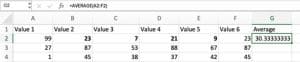
Let's start with a simple problem. We want to add the cells in each row and produce the average of the columns of data in the sheet.
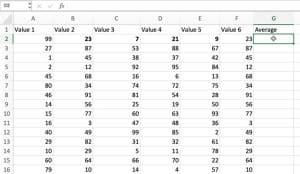
In the Copilot chat box, then, we will ask it to:

To which it replies:
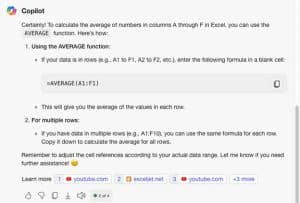
Click the copy icon to copy the formula and then paste it into your spreadsheet.

But...we get an error.
This illustrates the number one tip for working with ANY generative chat system—NEVER assume its answers are correct or complete without checking. You must always proof. In this case, Copilot assumed that your data was in Row 1. Not its fault really, we didn't specify a row. And it warned us to check the cell references!
We could repeat our instructions in more detail, but another benefit of chats is that they remember your conversation. Instead of typing "create an excel formula that averages the data in column a through f in row 2", you can just type:
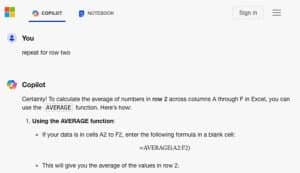
And now, when we paste in the revision, we get a working value that we can quickly drag into the other cells on the column.
Now let's look at a far more complicated question to demonstrate just how powerful this tool can be.
This is a snippet of the data:
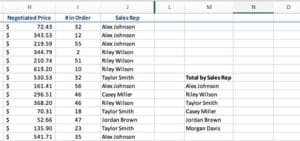
We want to find out how much each salesperson sold. This involves calculating a total sale number for each row ("Negotiated Price" times "# In Order") AND adding only the rows where the listed Sales Rep (starting at cell M9) is credited.
The prompt is a description of the formula needed using as much detail as possible, including cell numbers and the range of the data. Note that there are no actual data or files included in this example. We are just giving the tool the cell values it needs to work with to create a formula. It does not have or understand what is being evaluated.
This time using the OpenAI ChatGPT tool:
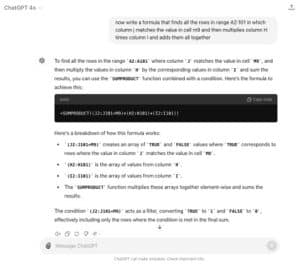
Not only does ChatGPT respond with a formula that can be quickly copied into the worksheet for testing, but it also takes the time to describe how it created the formula and explain what the formula is doing. In this case it cleverly uses the SUMPRODUCT function in combination with a condition to filter out all but the matching sales rep.
When we test the formula by calculating the result manually (see helper column K), we can see that it was accurate and can be used for the remaining sales team members.
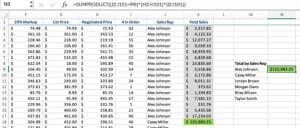
Can you spot the next problem you might have with this formula, however?
=SUMPRODUCT((J2:J101=M9)*(H2:H101)*(I2:I101))
The cell references for the column ranges are not absolute. They will shift along with your variable in cell M9 when you drag, causing errors in the result.
We could fix that ourselves, or we could ask ChatGPT to do it for us:
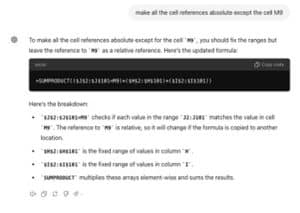
Now we can safely drag the formula into the remaining Sales Rep rows.
ChatGPT vs. Copilot for Excel: Key Differences
Throughout this article, we used both ChatGPT and Microsoft Copilot to generate Excel formulas. Here is a summary of how they compared based on our testing:
Feature | ChatGPT | Microsoft Copilot |
|---|---|---|
Cost (free tier): | Free at chatgpt.com with query limits | Free at copilot.microsoft.com with query limits |
Formula accuracy in testing: | Produced a correct SUMPRODUCT formula on the first attempt | Returned a flawed formula with incorrect arguments for the same prompt |
Explanation quality: | Provided a detailed breakdown of how the formula works | Offered a brief response with a reminder to check cell references |
Integration with Excel: | Web-based only (free tier); no direct spreadsheet access | Available as a web chat or as an integrated add-in within Excel (paid subscription) |
Conversation memory: | Remembers prior prompts in the same thread for iterative refinement | Remembers prior prompts in the same thread for iterative refinement |
Both tools are capable assistants, but in our testing ChatGPT delivered more accurate and better-explained results for complex formula generation. Copilot's advantage is its potential for direct integration within Excel for users who subscribe to the Microsoft 365 Copilot plan.
Summary and Caution
AI chat can enable average users to accomplish more complex Excel analysis and calculations than ever before. They are powerful tools for filling knowledge gaps and offering solutions to novel problems.
This power comes with a warning: You must be skilled enough to know when it's wrong. In testing and writing this article, Copilot's solution to the exact same sales rep prompt as ChatGPT was not only flawed in execution (the function didn't include the correct arguments), but it would also not have calculated the data as we wanted even if the function had been written properly. There will be times when you will have to try another tool, or you may have to spend time crafting your prompts more clearly to reach a solution.
Similarly, you must be mindful of details even a correct formula might be missing, such as we saw with the absolute vs. relative references.
Beyond formula accuracy, keep these additional caution areas in mind when using chatgpt for excel tasks:
Data privacy: Avoid pasting sensitive or confidential data into public AI chat tools. Anything you enter into a free-tier chat may be used to train future models.
Formula complexity limits: AI tools can struggle with extremely long or deeply nested formulas. If a prompt produces something you can't follow, break the task into smaller steps.
Understanding before deploying: Never use a formula you don't understand. Ask the AI to explain its logic and verify the output against known data before applying it to your work.
If you are ready to take the next step, consider pairing AI tools with structured training. Strengthening your foundational knowledge makes every AI-generated formula easier to verify and adapt.
But if you are strong on your Excel fundamentals, Copilot, ChatGPT and others can be outstanding partners. If you need to brush up on those fundamentals, Pryor Learning offers many Excel courses from beginning to advanced skill levels.