Basic Excel, Excel
Sep 30, 2026
How to Convert Text to Number in Excel
Key Takeaways
- Numbers stored as text cause formula errors, broken calculations and sorting issues in Excel.
- The fastest fix is using Excel's built-in "Convert to Number" error checking feature for small data sets.
- For bulk conversions, Paste Special (multiply by one), the VALUE() function and Text to Columns are the most reliable methods.
- If standard methods fail, hidden characters may be the culprit. Use TRIM() and CLEAN() to remove them before converting.
Excel is the go-to program when you need to organize data, create formulas and share information with the team. That being said, working with data in numerous places and applications can make the data import not as seamless as one would hope. Let's say you transferred data from an external source into Excel and numbers were mistaken for text. Your formulas are tagged with errors and dependent cells are missing data. Sound familiar?
The good news is there are several reliable ways to convert text to number in Excel. Whether you need a quick one-click fix or a formula-based approach for large data sets, the methods below will get your spreadsheet back on track.
Why Numbers Get Stored as Text in Excel
Before jumping into solutions, it helps to understand why this problem happens in the first place. Numbers end up stored as text in Excel for several common reasons:
- Imported data: Data pulled from CSVs, databases, web sources or PDFs often arrives formatted as text rather than numeric values.
- Leading apostrophes: An invisible apostrophe before a number (sometimes added by other applications) forces Excel to treat the value as text.
- Pre-formatted cells: If a cell is formatted as "Text" before you type a number into it, Excel stores that entry as text even though it looks like a number.
- Copy-pasting from external sources: Copying values from emails, Word documents or web pages can carry hidden formatting that prevents Excel from recognizing numbers.
Understanding the root cause helps you prevent the issue from recurring the next time you work with imported data.
How to Identify Numbers Stored as Text
Not sure whether your numbers are actually stored as text? Look for these telltale signs:
- Green triangle: A small green error indicator appears in the upper-left corner of the cell. This is Excel's way of flagging a potential problem.
- Left-aligned values: True numbers align to the right of a cell by default. If your numbers are hugging the left side, they are likely stored as text.
- ISNUMBER() returns FALSE: Enter =ISNUMBER(A1) in a nearby cell. If the result is FALSE, Excel is treating that value as text.
- ISTEXT() returns TRUE: Enter =ISTEXT(A1) to confirm. A TRUE result means the cell contains a text value, not a number.
Once you have confirmed the issue, choose one of the methods below to fix it.
How to Convert Text to Number in Excel
The following section covers six methods for converting text to numbers, from the simplest one-click fix to more versatile formula-based approaches.
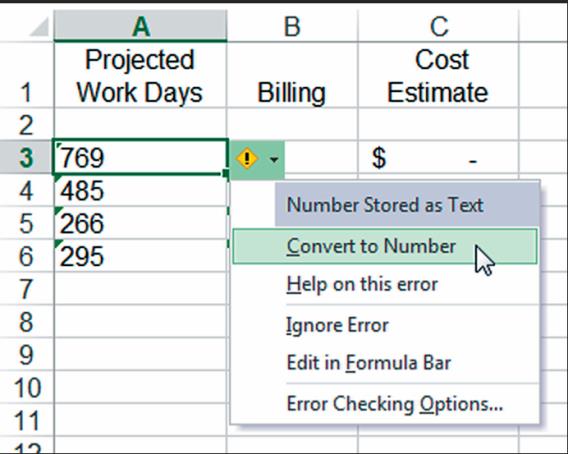
Option 1: Convert to Number with Error Checking
- Select the cell(s) with an error indicator in the upper left corner.
- Click on the error button to open a drop-down menu. Choose Convert to Number.
Option 2: Convert Text to Number with Paste Special
Use this method to make sure your data is correctly converted for formulas and equations.
- Enter "one" into any nearby empty cell. Format that cell as a number. Make sure the format of the cell is set to General in the Number panel on the Home tab.
- Right-click the cell containing the "one" and select Copy (or use Ctrl+C).
- Select the cells you want to convert.
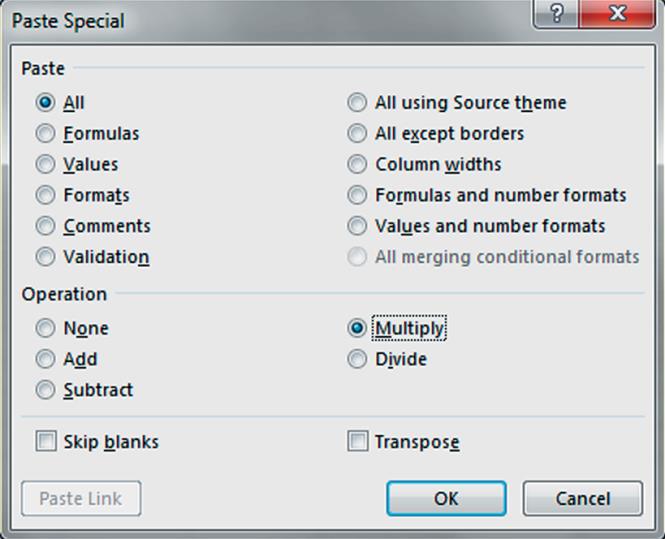
- Right-click the selection and choose Paste Special to launch the Paste Special dialog box.
- Click on the Multiply radio button, then choose OK.
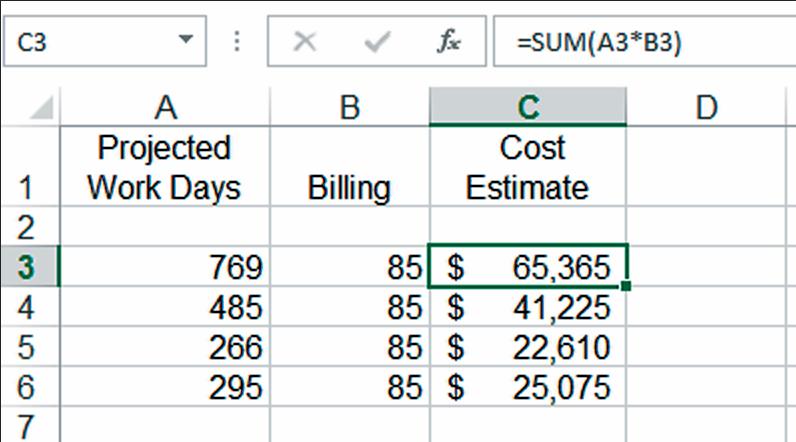
Tip: You may need to re-enter any formulas that were broken because of the columns that were formatted as text. Once you have re-entered them, they should work just fine!
Option 3: Use the VALUE() Function
The VALUE() function is one of the most versatile ways to convert text to numbers using a formula. It works especially well when you need to convert a large range of cells.
- Click on an empty cell in a helper column next to your text-formatted numbers.
- Enter the formula =VALUE(A1), replacing A1 with the reference to the first cell you want to convert.
- Press Enter. The result is a true numeric value that Excel can use in calculations.
- Drag the fill handle down to apply the formula to the remaining cells in the range.
- Select the helper column results, copy them (Ctrl+C) and use Paste Special > Values to paste them back over the original text-formatted column. Delete the helper column when finished.
Tip: The VALUE() function returns a #VALUE! error if the cell contains non-numeric characters. Combine it with TRIM() or CLEAN() first if your data has extra spaces or hidden characters.
Option 4: Change the Cell Format
Changing the cell format is the most intuitive approach, though it comes with a limitation. Simply switching the format does not always force Excel to re-evaluate the cell contents.
Select the cells containing numbers stored as text.
On the Home tab, open the Number Format dropdown (it likely reads "Text") and choose Number or General. (For visual data highlighting, you can also apply conditional formatting once your values are numeric.)
Click into each cell individually and press Enter to force Excel to re-evaluate the value. For a faster alternative, select the range, press Ctrl+H to open Find and Replace, search for a period (.) and replace with a period (.), then click Replace All. This triggers re-evaluation across the entire selection.
Limitation: This method can be slow for large data sets because each cell may need to be individually confirmed. It works best when you have a small number of cells to fix.
Option 5: Use Text to Columns
Text to Columns is a quick way to force Excel to re-evaluate an entire column of data. You do not need to configure any delimiter settings for this purpose.
Select the column (or range of cells) containing numbers stored as text.
Go to the Data tab and click Text to Columns.
In the Convert Text to Columns Wizard, leave the default settings and click Finish immediately.
Excel re-processes the selected data and converts text values to numbers automatically. This method is especially effective for data imported from CSVs or external databases.
Option 6: Use Arithmetic Operations
If you prefer a formula-based approach without using the VALUE() function, simple arithmetic operations can do the job. This is essentially the formula version of the Paste Special method.
In an empty helper column, enter the formula =A1+0 or =A1*1, replacing A1 with the reference to your first text-formatted cell.
Press Enter and drag the fill handle down to apply the formula to the rest of the range.
Copy the helper column, paste as values over the original column and delete the helper column.
Tip: Adding zero or multiplying by one does not change the numeric value. This is one of many useful Excel shortcuts that simply forces Excel to treat the result as a number.
Troubleshooting: When Standard Methods Don't Work
Sometimes the methods above do not fully resolve the issue. If your cells still behave like text after conversion, hidden characters are likely the culprit. Here are the most common scenarios and how to fix them:
Extra spaces: Use =TRIM(A1) to remove leading, trailing and extra spaces between characters. Wrap it with VALUE() like =VALUE(TRIM(A1)) to convert the cleaned result to a number in one step.
Non-breaking spaces: Standard TRIM() does not remove non-breaking spaces (common in web-sourced data). Use =SUBSTITUTE(A1,CHAR(160)," ") to replace them with regular spaces, then apply TRIM() and VALUE().
Non-printing characters: Use =CLEAN(A1) to strip non-printing characters that are invisible but prevent conversion. Combine with TRIM() for best results: =VALUE(TRIM(CLEAN(A1))).
Leading apostrophes: An apostrophe before a number is not visible in the cell but appears in the formula bar. The Text to Columns method (Option 5) or Find and Replace can remove these efficiently.
If you have tried all of the above and the data still will not convert, the cell may contain characters that look like numbers but are actually different Unicode characters. In that case, re-entering the values manually or using a SUBSTITUTE() formula to target the specific character is the most reliable fix.
Which Method Should You Use?
Method | Best For | Pros | Cons |
|---|---|---|---|
Error Checking (Option 1) | Small data sets with green triangles | One-click fix, no formulas needed | Only works when error indicators are present |
Paste Special (Option 2) | Bulk conversion without helper columns | Converts in place, handles large ranges | Requires a temporary cell with the value "one" |
VALUE() Function (Option 3) | Formula-based workflows | Flexible, works in combination with other functions | Requires a helper column |
Change Cell Format (Option 4) | A few cells that need a quick fix | No formulas or extra steps | Requires re-evaluation of each cell |
Text to Columns (Option 5) | Entire columns of imported data | Fast, no formulas, converts in place | Only works on one column at a time |
Arithmetic Operations (Option 6) | Quick formula-based conversion | Simple syntax, easy to understand | Requires a helper column |
Build Your Excel Skills with Pryor Learning
Knowing how to troubleshoot data formatting issues is just one piece of becoming proficient in Excel. Pryor Learning offers hands-on Excel training courses designed for every skill level, from spreadsheet basics to advanced formulas and data analysis. Explore Pryor's Excel training options to sharpen your skills, or unlock unlimited access to hundreds of courses with PryorPlus.