Excel, Formulas, Functions
Sep 15, 2026
Essential Excel Functions Cheat Sheet for Everyday Use
Whether you are just starting out or looking to sharpen your skills, having a reliable excel cheat sheet on hand can save you hours of searching for the right syntax. This guide gives you a scannable reference of essential Excel functions, operators and filter criteria so you can build and troubleshoot formulas with confidence.
Key Takeaways
This excel functions cheat sheet covers the most commonly used formulas, operators and filter criteria in one scannable reference.
Understanding Excel syntax structure helps you build and troubleshoot formulas faster.
Functions are organized by category (math, text, lookup, logical, date/time) so you can find what you need quickly.
Pair this cheat sheet with keyboard shortcuts and hands-on practice to save significant time in your daily work.
What Are Excel Functions and Formulas
A formula is any expression in Excel that begins with an equals sign (=) and performs a calculation. It can be as simple as =A1+B1 or as complex as a nested series of operations spanning multiple worksheets. A function is a specific type of formula that is pre-built into Excel to simplify common calculations. Instead of writing out every step of a calculation manually, you call a function by name and provide the required inputs, known as arguments.
For example, rather than adding each cell individually with =A1+A2+A3+A4, you can use the SUM function: =SUM(A1:A4). Excel includes hundreds of functions spanning several categories, including specialized Excel finance formulas for interest, depreciation and investment calculations:
Math and statistical: SUM, AVERAGE, COUNT, MIN, MAX, ROUND
Text: LEFT, RIGHT, MID, CONCATENATE, TRIM, UPPER
Lookup and reference: VLOOKUP, HLOOKUP, INDEX, MATCH, XLOOKUP
Logical: IF, AND, OR, IFERROR, IFS
An excel formulas cheat sheet is valuable because it puts the syntax and purpose of these basic excel formulas in one place, eliminating the need to search through documentation every time you build a new calculation.
How to Read Function Syntax
Every Excel function follows a consistent structure. Understanding that structure makes it easier to use any function, even one you have never tried before. The general pattern looks like this:
Example: =VLOOKUP(lookup_value, table_array, col_index_num, [range_lookup])
Here is what each part means:
The function name (VLOOKUP) tells Excel which operation to perform.
The opening parenthesis signals the start of the arguments.
Required arguments (lookup_value, table_array, col_index_num) are the inputs the function needs to run. They are separated by commas.
Optional arguments appear in square brackets ([range_lookup]). You can include them to refine the function's behavior or leave them out to accept the default.
The closing parenthesis marks the end of the function.
When reading excel syntax on a cheat sheet, focus on identifying which arguments are required and which are optional. This tells you the minimum information you need to supply for the function to work.
Common Excel Operators
Operators are the symbols Excel uses to perform calculations and comparisons inside formulas. The table below organizes the most common excel operators by type.
Type | Operator | Description |
|---|---|---|
Arithmetic | + | Addition |
Arithmetic | - | Subtraction |
Arithmetic | * | Multiplication |
Arithmetic | / | Division |
Arithmetic | ^ | Exponentiation |
Arithmetic | % | Percent |
Comparison | = | Equal to |
Comparison | > | Greater than |
Comparison | < | Less than |
Comparison | >= | Greater than or equal to |
Comparison | <= | Less than or equal to |
Comparison | <> | Not equal to |
Text | & | Concatenation (joins text strings) |
Reference | : | Range (e.g., A1:A10) |
Reference | , | Union (combines multiple references) |
Reference | (space) | Intersection (returns cells common to two ranges) |
You will see these operators throughout the cheat sheet images below. Knowing what each one does helps you read and write formulas more quickly.
Excel Functions Cheat Sheet Reference
The following sections provide visual cheat sheet references for advanced filter criteria and the most popular Excel functions.
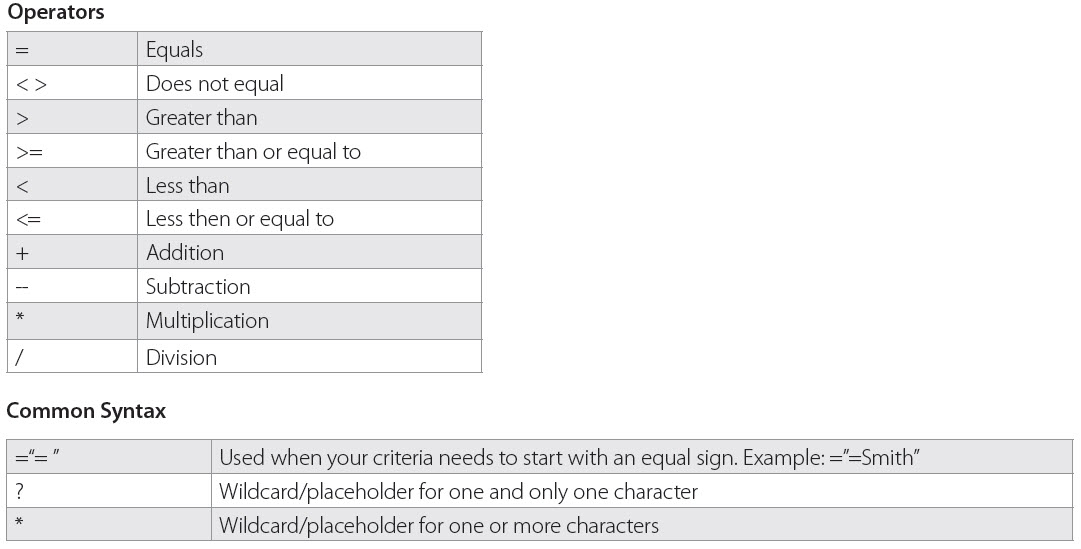
Advanced Filter Criteria
Excel's Advanced Filter lets you extract data using complex criteria. The references below show the syntax for building single-criteria, multi-criteria and wildcard filter expressions. For visual data highlighting without filtering, conditional formatting based on cell values is another powerful option.
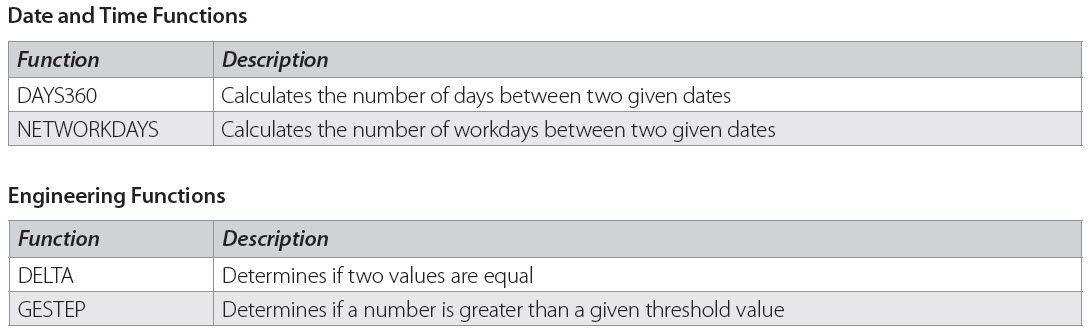
Popular Excel Functions and Descriptions
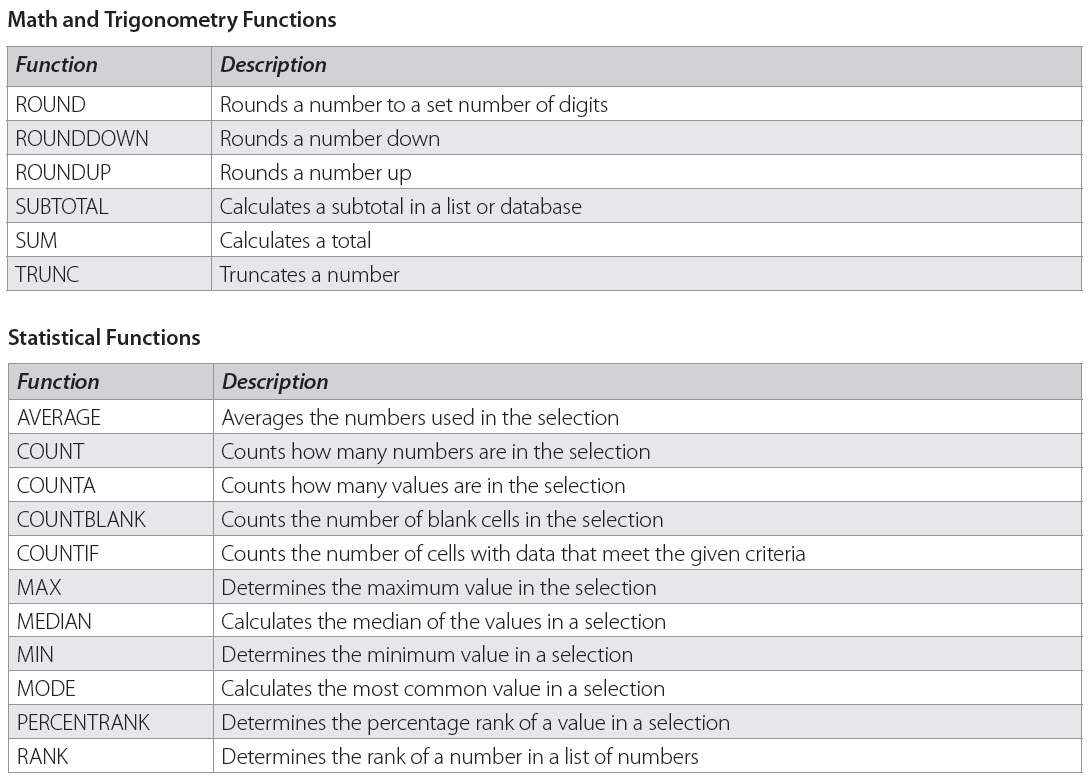
The following images list the most commonly used Excel functions organized by category, including each function's syntax and a brief description of what it does.
Helpful Keyboard Shortcuts for Formulas
Knowing a handful of keyboard shortcuts can dramatically speed up your formula work. The table below lists the most useful shortcuts for building, editing and troubleshooting Excel formulas.
Shortcut | Action |
|---|---|
Ctrl+` (grave accent) | Toggle between showing formulas and showing results in all cells |
F2 | Edit the active cell and position the cursor at the end of its contents |
Tab | Accept an AutoComplete suggestion for a function name |
F4 | Toggle through absolute and relative reference types (e.g., A1, $A$1, A$1, $A1) |
Ctrl+Shift+Enter | Enter a formula as an array formula (legacy method) |
Ctrl+Enter | Fill the same formula into all selected cells at once |
F9 | Evaluate a selected portion of a formula in the formula bar |
Alt+= | Insert an AutoSum formula for the adjacent range |
Esc | Cancel an entry or formula edit in progress |
Ctrl+Z | Undo the last action, including a formula entry |
Pairing these excel keyboard shortcuts with the function references above will help you work through spreadsheets faster and with fewer errors.
Next Steps
As you continue working in Excel, you'll learn additional uses as you build formulas to meet your specific needs. The great thing about Excel is that it is flexible enough to allow just about any calculation you might need – and now you have a reference tool to decipher it!
To get the most out of this excel functions cheat sheet, consider these next steps:
Bookmark or print this page: Keep it accessible so you can reference syntax and operators without breaking your workflow.
Practice with real data: Open a spreadsheet you use regularly and try replacing manual calculations with the functions listed above. If you need a solid foundation first, Excel basics training covers essential functions and productivity tools in a single day.
Explore Pryor Learning Excel training: Pryor Learning offers live virtual and in-person Excel seminars that walk you through formulas, data analysis and advanced features with hands-on exercises.
Consider PryorPlus for ongoing development: A PryorPlus subscription gives you access to a full library of Excel courses and other professional development training you can take at your own pace.
A cheat sheet is a great starting point, but building true confidence with Excel comes from guided practice and structured learning. Explore Pryor Learning's Excel training courses to take the next step.
![Negativity in the Workplace: How to Deal With It [Video]](https://www.pryor.com/dw/image/v2/BKXV_PRD/on/demandware.static/-/Sites-PryorLearning-Library/default/dw5e5dd762/images/blog/negativity-in-the-workplace-how-to-deal.jpg?sw=768&sfrm=jpg)