Excel, Formulas
Sep 16, 2026
How to Subtract in Excel Using the Subtraction Formula
You have created a report that shows your company's sales by month. Your boss asks you to add a row that shows the change from the prior month. You need to subtract the prior month's sales from the current month's sales.
Unfortunately, Excel doesn't have a SUBTRACT formula. What do you do?
Key Takeaways
Excel does not have a dedicated SUBTRACT function. Instead, you subtract in Excel using the minus operator (-) in a formula such as =A1-B1.
You can subtract two cells, multiple cells or entire columns by building formulas with cell references and copying them down.
The SUM function can also handle subtraction when you use negative values or negate cell references.
Special subtraction cases like dates, times and percentages each require specific formatting to return accurate results.
What Is the Excel Subtraction Formula?
Unlike addition (which has the SUM function), Excel has no built-in SUBTRACT function. Instead, the Excel subtraction formula relies on the minus operator (-) placed inside a standard formula. To learn how to subtract in Excel, you only need to remember one pattern: type an equals sign, the value you want to start with, a minus sign and the value you want to subtract.
The basic syntax looks like this: =value1-value2. You can use hardcoded numbers, cell references or a combination of both. The minus operator also works alongside other arithmetic operators in the same formula, so you can add, subtract, multiply and divide all in one expression.
Here are the most common ways to write an Excel minus formula:
Syntax | Description | Example |
|---|---|---|
=10-5 | Subtract one number from another using hardcoded values | Returns 5 |
=A1-B1 | Subtract two cells in Excel using cell references | Returns the difference between A1 and B1 |
=A1-10 | Subtract a fixed number from a cell value | Returns A1 minus 10 |
=A1-B1-C1 | Subtract multiple cells from a starting value | Returns A1 minus B1 minus C1 |
=A1-SUM(B1:D1) | Use SUM to subtract a range from a single cell | Returns A1 minus the total of B1 through D1 |
The following step-by-step example demonstrates how to subtract cell references in a real-world sales report.
Set Up Your Report
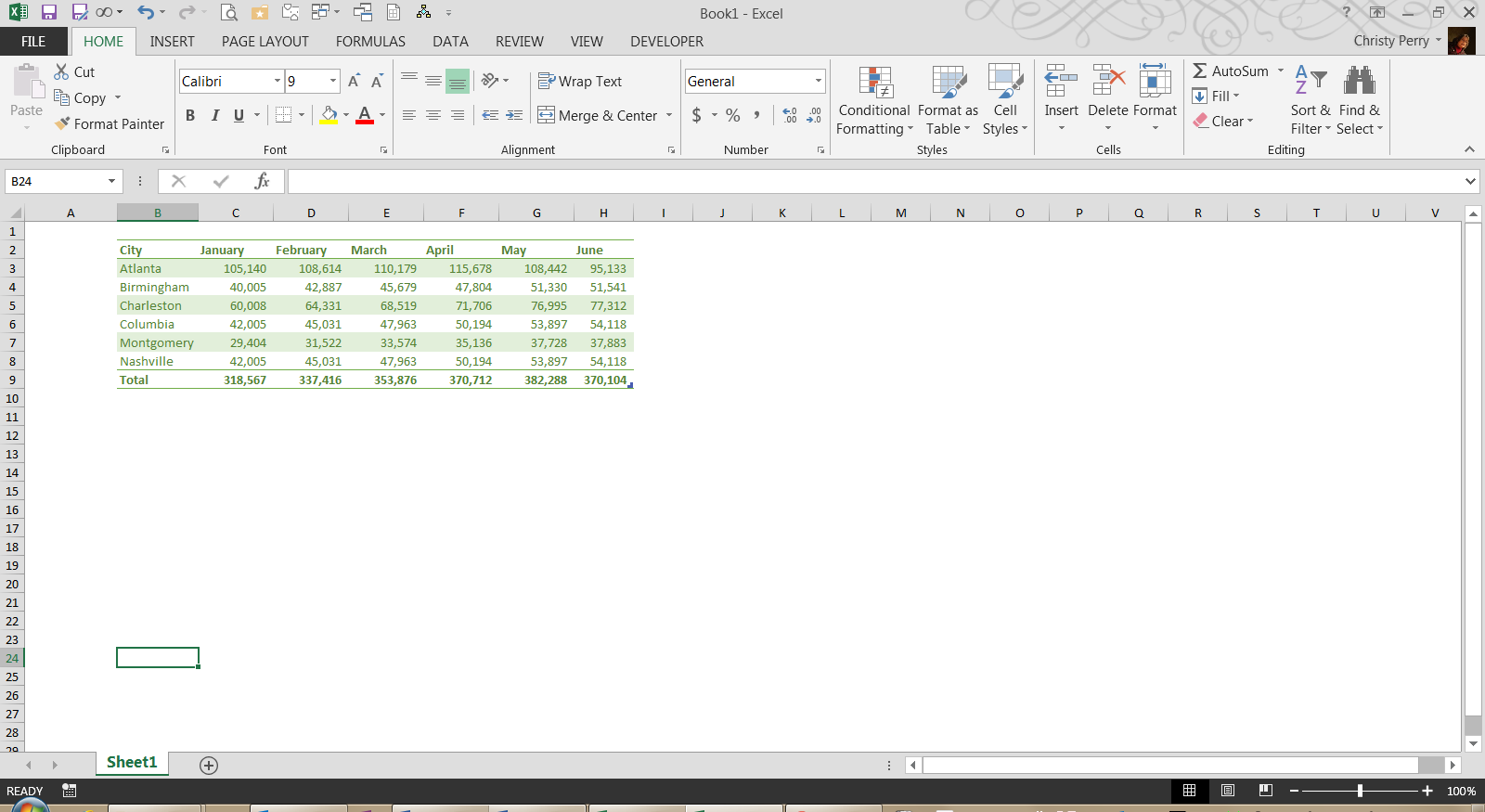
This example demonstrates how to subtract cell references in a real-world sales report scenario. In this example, columns C through H show the sales for each month. Row nine displays the total of sales for all cities.
Are the sales increasing each month? If so, by how much?
Add a Change Row
Row 11 shows the change from the prior month. Each formula in Row 11 is the result of subtraction using the "-" (hyphen) as a minus sign. To create the formula in cell D11:
- Click on cell D11.
- Click in the formula bar.
- Type "=" to tell Excel that you are beginning a formula.
- Type "D9-C9".
- Press Enter.
You can copy this formula to cells E11 through H11 by dragging the fill handle or using copy and paste to complete your change calculations. In this example, each month's sales were greater than the previous month except June, when the sales dropped back to April levels.

Other Ways to Subtract in Excel
The example above covers the most common scenario: subtracting one cell from another. However, you will often need to handle more complex subtraction tasks. The following methods expand on the basic subtraction formula in Excel to cover additional use cases.
Subtract Multiple Cells
You can chain the minus operator to subtract more than two cells in a single formula. For example, if you want to subtract cells B1, C1 and D1 from A1, type =A1-B1-C1-D1 and press Enter. This approach works for any number of cells. Excel evaluates the subtraction from left to right, so the result is A1 minus B1, then minus C1, then minus D1.
Apply a Subtraction Formula to an Entire Column
To apply a subtraction formula in Excel for an entire column, start by entering the formula in the first row of your results column. For example, type =A2-B2 in cell C2. Then copy the formula down using one of these methods:
- Fill handle: Click the small square in the lower-right corner of the cell and drag it down to the last row of data.
- Double-click autofill: Double-click the fill handle and Excel will automatically fill the formula down to match the adjacent column's data range.
- Keyboard shortcut: Select the range you want to fill, then press Ctrl+D.
If you need to subtract the same fixed value from every row, use an absolute reference. For example, =A2-$B$1 locks cell B1 so it does not shift when you copy the formula down. The dollar signs before the column letter and row number tell Excel to keep that reference constant.
Use the SUM Function for Subtraction
The SUM function can handle subtraction when you negate the values you want to subtract. There are two common approaches:
- Negate individual cells: Type =SUM(A1,-B1,-C1) to add A1 and subtract B1 and C1. The minus sign before each cell reference turns that value negative before SUM totals everything.
- Subtract a range from a single cell: Type =A1-SUM(B1:D1) to subtract the total of B1 through D1 from A1. This is more efficient than chaining multiple minus operators when you need to subtract many cells from one value.
The SUM approach is especially useful when your subtraction involves a long list of values, because you can reference an entire range instead of typing each cell individually.
How to Subtract Dates, Times and Percentages in Excel
Excel stores dates, times and percentages differently than regular numbers. Each data type requires specific formatting to return accurate subtraction results.
Subtract Dates
To subtract dates in Excel, place two dates in separate cells and use a simple formula like =B1-A1. Excel returns the number of days between the two dates. Make sure both cells are formatted as dates; otherwise, you may see unexpected numbers instead of a day count.
For differences measured in months or years rather than days, use the DATEDIF function. The syntax is =DATEDIF(start_date, end_date, "unit"), where the unit can be "M" for months or "Y" for years.
Subtract Time
To subtract time in Excel, enter time values in two cells and use =B1-A1. Format the result cell with a custom time format such as h:mm to display hours and minutes. If the end time is earlier than the start time, Excel may return a negative value or a series of hash marks (####). One workaround is to use =MOD(B1-A1,1) to handle time calculations that cross midnight.
Subtract Percentages
To subtract a percentage from a number (for example, applying a discount), use the formula =A1*(1-B1), where A1 contains the original number and B1 contains the percentage. This multiplies the original value by the remaining percentage after the discount.
If both cells already contain percentages and you want to subtract percentages in Excel directly, use =A1-B1. Make sure both cells are formatted as percentages so Excel treats them correctly.
Tips for Avoiding Common Subtraction Errors
Even a straightforward subtraction formula in Excel can produce unexpected results if something is slightly off. Keep these tips in mind:
- #VALUE! errors from text in cells: If a cell contains text or a space instead of a number, Excel cannot perform the calculation. Check that every referenced cell contains a valid numeric value.
- Wrong cell references: Double-check your formula to make sure you are pointing to the correct cells. A misplaced reference can silently return an incorrect result without triggering an error.
- Order of operations: When you mix subtraction with multiplication or division in the same formula, Excel follows standard order of operations. Use parentheses to control which calculations happen first (e.g., =(A1-B1)*C1).
- Forgetting absolute references when copying: If you copy a formula down a column and the wrong cell shifts, add dollar signs ($) to lock the reference that should stay fixed.
- Unexpected negative results: If your result is negative and you expected a positive number, confirm that you placed the larger value first in your formula. You can also use the ABS function (=ABS(A1-B1)) to return the absolute value.
Strengthen Your Excel Skills with Pryor Learning
Subtraction is just one of many essential Excel skills that can save you time and improve accuracy in your daily work. Pryor Learning offers comprehensive Excel training designed for every skill level, from beginner fundamentals to advanced formulas and data analysis.
Explore Pryor's Excel training options to build confidence and efficiency in the tools you use every day:
- Live seminars: Instructor-led sessions with real-time Q&A and hands-on practice.
- On-Demand courses: Self-paced video training like 60 Minutes of Excel Secrets that you can access anytime through PryorPlus.
- Continuing education credits: Many courses qualify for CPE and other professional development credits.