Basic Excel, Excel
Jan 14, 2015
How to Convert Text to Number in Excel: 2 Ways
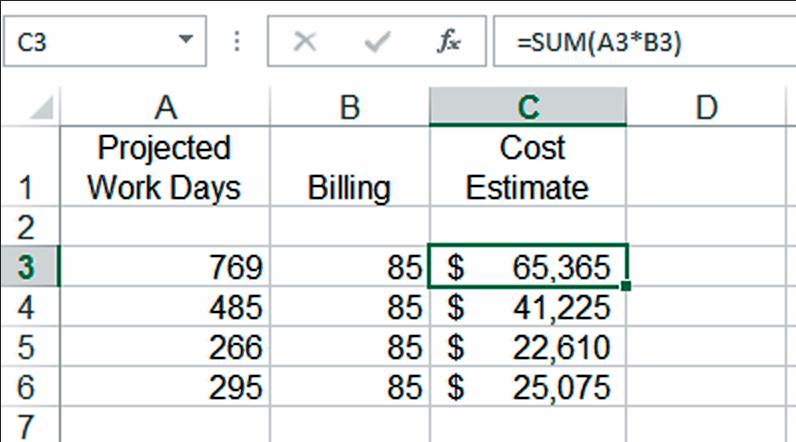
Excel is the go-to program when you need to organize data, create formulas and share information with the team. That being said, working with data in numerous places and applications can make the data import not as seamless as one would hope. Let’s say you transferred data from an external source into Excel and numbers were mistaken for text. Your formulas are tagged with errors and dependent cells are missing data. Sound familiar?
Try this: Reformat the cells as numbers, or multiply each cell by one using the Paste Special function. Option 1 is fastest, but occasionally creates irregularities (often as a result of how the data was entered originally.) Option 2, however, produces more consistent results. You decide which works better for you.
Step-by-Step
Option 1: Reformat the cells as numbers
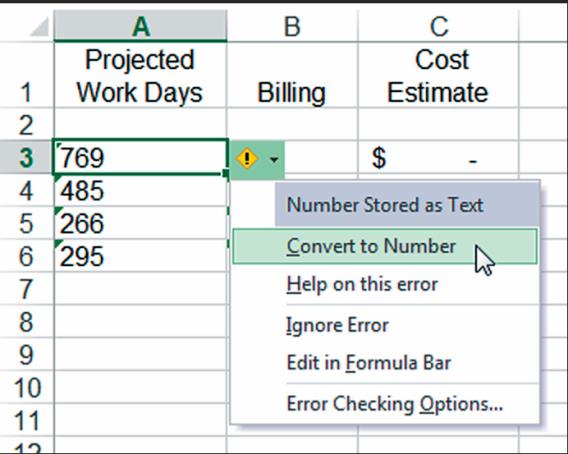
- Select the cell(s) with an error indicator in the upper left corner.
- Click on the error button to open a drop-down menu. Choose Convert to Number.
Option 2: Convert data with the Paste Special function
Use this method to make sure your data is correctly converted for formulas and equations.
- Enter “1” into any nearby empty cell. Format that cell as a number. Make sure the format of the cell is set to General in the Number panel on the Home tab.
- Right-click the cell containing the “1” and select Copy (or use Ctrl+C).
- Select the cells you want to convert.
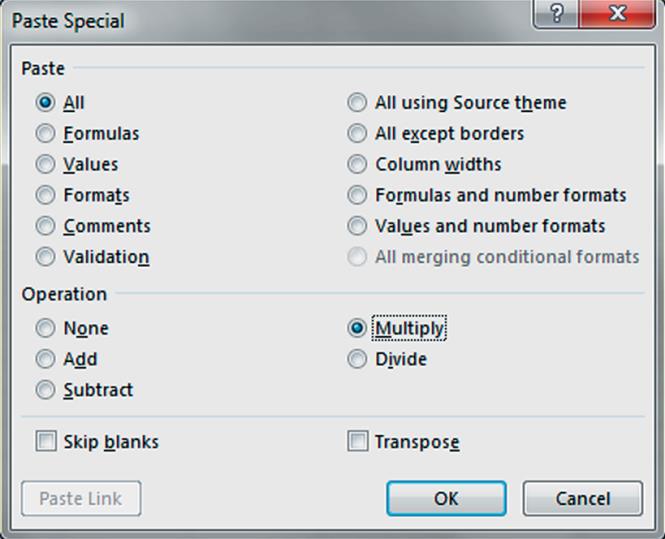
- Right-click the selection and choose Paste Special to launch the Paste Special dialog box.
- Click on the Multiply radio button, then choose OK.
Hot Tip: You may need to re-enter any formulas that were broken because of the columns that were formatted as text. Once you have re-entered them, they should work just fine!