Excel
Sep 30, 2026
XLOOKUP vs VLOOKUP: Key Differences and When to Use Each
Key Takeaways
XLOOKUP eliminates VLOOKUP's biggest limitations, including the left-column restriction, fragile column index numbers and approximate match as the default.
XLOOKUP can search in any direction, return multiple values and display custom error messages, making it more flexible for complex lookups.
VLOOKUP is still the right choice when sharing workbooks with users on older Excel versions or maintaining legacy spreadsheets.
Both functions return only the first match found, so neither handles duplicate lookup values on its own.
What Are XLOOKUP and VLOOKUP?
VLOOKUP and XLOOKUP are both Excel lookup functions designed to search for a value in one range and return a corresponding value from another. For decades, VLOOKUP has been the go-to function for vertical lookups, and it remains one of the most widely used formulas in Excel. XLOOKUP is a modern replacement introduced in Microsoft 365 and Excel 2021 that addresses VLOOKUP's well-known limitations while also replacing HLOOKUP for horizontal searches.
Understanding the differences between VLOOKUP vs XLOOKUP helps you choose the right function for your workflow and avoid common formula errors. VLOOKUP still works, but it comes with limitations that can cause problems as your data grows or changes:
The lookup value must be in the first column of your table array.
You must specify a column index number, which breaks if columns are inserted or deleted.
The default match type is approximate, which can return incorrect results on unsorted data.
It cannot search horizontally or return values from columns to the left of the lookup column.
Microsoft designed XLOOKUP to solve each of these issues while adding new capabilities like custom error messages and reverse search.
XLOOKUP vs VLOOKUP Syntax at a Glance
Before diving into examples, here is a side-by-side comparison of how each function's arguments map to one another. This table highlights the key xlookup vs vlookup differences in how you build each formula.
Argument Purpose | VLOOKUP | XLOOKUP |
|---|---|---|
Value to search for | lookup_value | lookup_value |
Where to search | table_array (must start with lookup column) | lookup_array (any single column or row) |
What to return | col_index_num (column number) | return_array (any column, row or range) |
Match type | range_lookup (TRUE/FALSE; default is approximate) | match_mode (default is exact match) |
Error handling | Not available (requires wrapping in IFERROR) | if_not_found (built-in custom message) |
Search direction | Not available (top to bottom only) | search_mode (first to last, last to first, binary ascending, binary descending) |
The most important structural difference is that XLOOKUP uses separate lookup and return arrays instead of a single table_array with a column index number. This design is the root of most of XLOOKUP's advantages because it frees you from worrying about column position and makes formulas more resilient when your data changes.
VLOOKUP Syntax and Examples
Microsoft introduced the XLOOKUP function in Microsoft 365 and Excel 2021, and it improves upon the heavily used VLOOKUP function in several ways. Let's start by reviewing the syntax and an example of each function to understand the differences, starting with VLOOKUP.
Here is the syntax: VLOOKUP (lookup_value, table_array, col_index_num, [range_lookup])
lookup_value holds the value or cell reference of the data you know. The value must be located in the first column of the range you specify in the next argument.
table_array holds the range of cells you want to search. This range must include the lookup value in the first column, and the return value.
col_index_num holds the column location of the return value. This is specified by column number where 1 is the left-most column of the range entered in the second argument.
range_lookup is optional and lets you specify whether VLOOKUP should find an approximate or an exact match. Approximate, or TRUE, is the default. FALSE will tell VLOOKUP to return a value only if it finds an exact match in the first column.
We want to use VLOOKUP to find birthday information in an employee database by searching for last names. You might use this to fill out health insurance applications or retirement planning. Here are the important elements of the calculation:
We will type the name we are looking for in the orange cell, I5 [A]. The VLOOKUP will go in cell J5.
Our lookup data, Last names, are in Column B, so that will be the leftmost range of our array which also must include the information we want returned [B].
The information we want is in column D, the 3rd column in our range (not the 3rd in the table)
We only want to return exact matches.
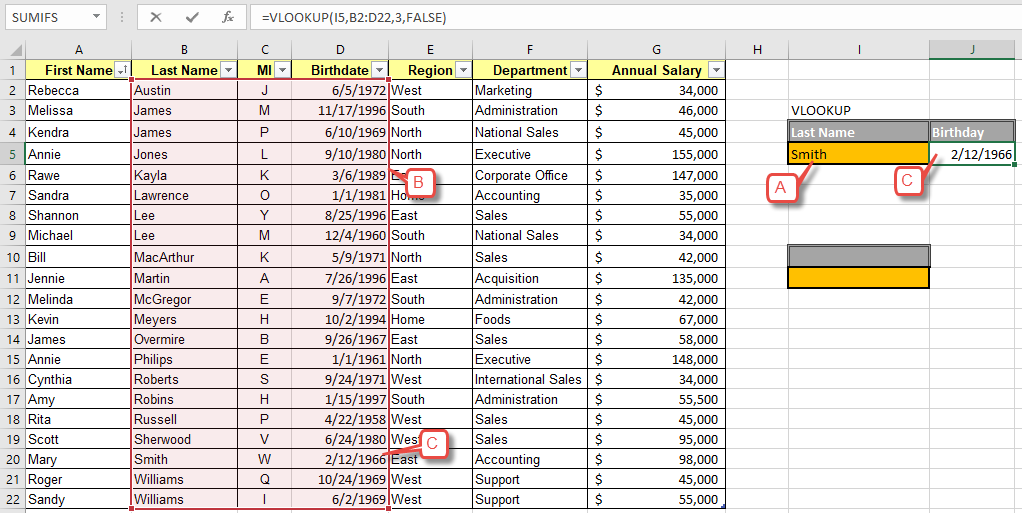
Our function will then be: =VLOOKUP(I5,B2:D22,3,FALSE) When we type the name "Smith" into cell I5, it correctly returns Mary Smith's birthday [C].
Limitations of VLOOKUP
Here are the limitations of VLOOKUP in this case:
It assumes that your first array column is sorted. If it is not sorted, you can get wrong results using approximate match.
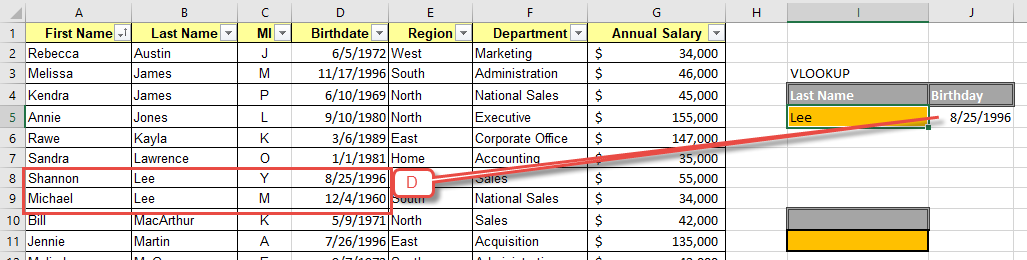
VLOOKUP can only return the first match it finds. It will not return Michael Lee's record after returning Shannon Lee [D].
The col_index_num argument is a hard-coded column number. If you insert or delete columns in your table, that number no longer points to the correct column and your formula returns wrong results or an error.
XLOOKUP Syntax and Examples
Now let's look the same example using XLOOKUP. Here is the syntax:
=XLOOKUP(lookup_value, lookup_array, return_array, [if_not_found], [match_mode], [search_mode])
lookup_value holds the value or cell reference of the data you know.
lookup_array holds the range of the cells you want XLOOKUP to search.
return_array holds the range of the location of the return. You can specify multiple columns or rows if you wish, but they must be contiguous.
if_not_found is optional and allows you to specify a custom error message when a search result is not found.
match_mode is optional allows you to specify how Excel chooses a match. The default is exact match.
search_mode allows you to specify a search order such as reverse search. The default search starts at the first item.
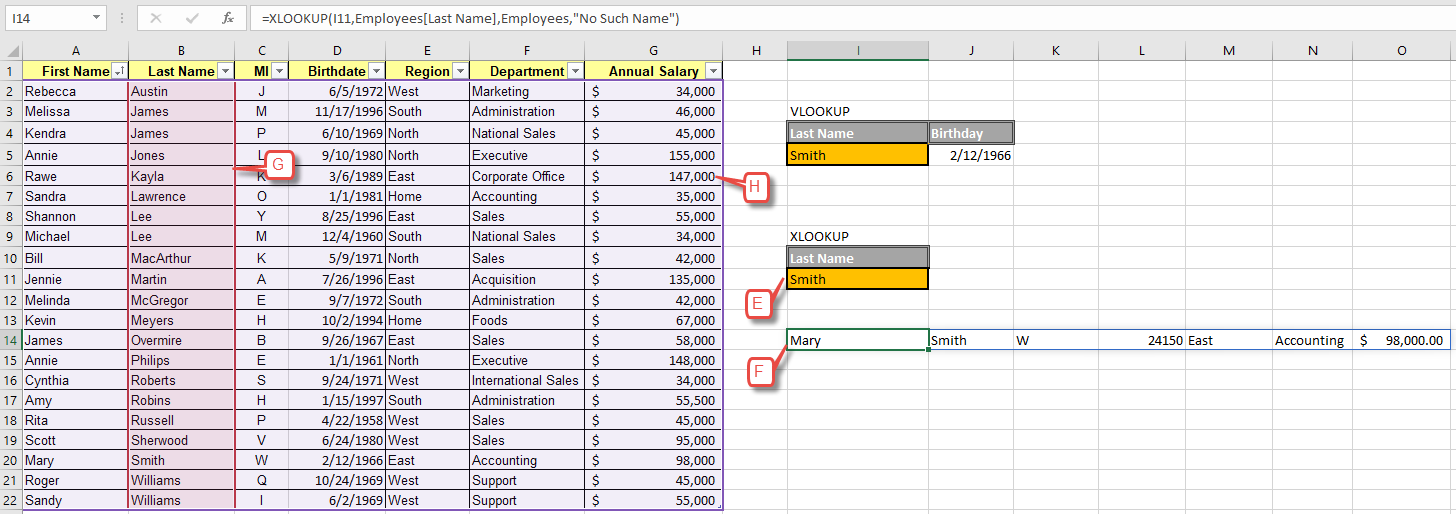
We want to look up complete records for employees by their last name. Here are the important elements of the calculation:
We will type the name we are looking for in the orange cell, I11 [E]. The XLOOKUP will go in cell I14 [F].
Our data is in a table named "Employees" and we want to search the Last Name column to find matches.
We want to return a complete record for each match, so we can specify all columns in the table by using the table's name: "Employees." Unlike VLOOKUP, XLOOKUP can return values to the left of the search array.
We only want exact matches returned.
We want the text "No Such Name" returned when a match is not found.
We will leave the match and search mode defaults.
Our function will then be:
=XLOOKUP(I11,Employees[Last Name],Employees,"No Such Name")
Excel helps you view your array arguments by highlighting the lookup_array in red [G], and the return_array in purple [H] when editing your function.
Advantages of XLOOKUP
XLOOKUP allows you to find matches and return multiple values from the entire record, not just one cell within the record.
XLOOKUP can perform both horizontal and vertical lookups, whereas before you would have to choose between VLOOKUP (vertical) or HLOOKUP (horizontal).
XLOOKUP eliminates the dreaded left column lookup limitation of VLOOKUP. This is especially useful when your table changes and the return value is no longer in the same column number.
XLOOKUP can search in reverse order, bottom to top as well as top to bottom, which makes it easier to find the "last" or "first" of items in certain uses.
Exact match is far more preferred than approximate match. XLOOKUP's default of exact match is a sigh of relief for many.
You can customize the error message so that you can tell the difference between a broken function and zero matches.
Disadvantages of XLOOKUP
Just like VLOOKUP, XLOOKUP can only return the first match it finds. This can cause problems if you have records with the same data in the lookup array.
XLOOKUP is not available in Excel 2019 and earlier versions. It also has limited support in some non-Microsoft spreadsheet applications, which can create compatibility issues when sharing workbooks across organizations.
When to Use VLOOKUP Instead of XLOOKUP
XLOOKUP is rapidly replacing VLOOKUP and HLOOKUP as a superior option that performs the function of both, better. So, the short answer to this question is don't. However, the long answer is more nuanced.
XLOOKUP is only available in Microsoft 365 and Excel 2021 and is not backward compatible. If you regularly share workbooks with partners who run older software, stick with VLOOKUP so they will be able to use the files.
Similarly, if you are maintaining data that was created using VLOOKUPs, continue to do so. You do not want to introduce mistakes by trying to update working functions when there is no need. If you do decide to reformat an older workbook, make sure you save and archive the original so that you can always return to if your update causes errors.
If you are hesitant to leave your favorite function behind, Pryor Learning has Excel courses available to help you make the leap and stay current with the best that Excel has to offer.
XLOOKUP vs VLOOKUP Comparison Table
The following table summarizes the key differences between VLOOKUP and XLOOKUP across the dimensions that matter most for everyday use.
Feature | VLOOKUP | XLOOKUP |
|---|---|---|
Default match type | Approximate match (TRUE) | Exact match |
Lookup direction | Left to right only | Any direction (left, right, up, down) |
Return values | Single cell only | Single cell or multiple contiguous columns/rows |
Column index required | Yes (hard-coded number) | No (uses a return array reference) |
Built-in error handling | No (requires IFERROR wrapper) | Yes (if_not_found argument) |
Search modes | Top to bottom only | First to last, last to first, binary ascending, binary descending |
Horizontal lookup | No (requires HLOOKUP instead) | Yes (handles both vertical and horizontal) |
Compatibility | All Excel versions | Microsoft 365, Excel 2021, Excel for the web, Google Sheets |
Performance and Compatibility
For most datasets, XLOOKUP and VLOOKUP perform at comparable speeds. In exact match scenarios, XLOOKUP can be slightly faster because it defaults to exact match and uses a more efficient search algorithm that does not require sorted data. For very large datasets with sorted data, XLOOKUP's binary search mode can offer a noticeable performance improvement over VLOOKUP.
On the compatibility side, XLOOKUP requires Microsoft 365, Excel 2021 or Excel for the web. Excel 2019, Excel 2016 and earlier desktop versions do not support it. If you open a workbook containing XLOOKUP formulas in an unsupported version, those cells will display a #NAME? error. Google Sheets added support for XLOOKUP, so cross-platform users can take advantage of the function there as well. Before converting existing VLOOKUP formulas in shared workbooks, check which Excel versions your team and external partners are running to avoid breaking their files.
Build Your Excel Skills with Pryor Learning
XLOOKUP is the more powerful and flexible lookup function, and it should be your default choice whenever your version of Excel supports it. That said, VLOOKUP remains relevant for backward compatibility and legacy workbook maintenance, so knowing both functions makes you a more versatile Excel user.
Pryor Learning offers Excel courses designed to help you master lookup functions and dozens of other essential skills. Whether you are just getting comfortable with VLOOKUP or ready to explore everything XLOOKUP can do, structured training accelerates your progress. Here are a few next steps to consider:
Explore courses like Power Excel to find training matched to your skill level.
Practice building XLOOKUP formulas alongside your existing VLOOKUP workbooks to compare results.
Learn INDEX/MATCH as a complementary technique for scenarios where neither VLOOKUP nor XLOOKUP is the ideal fit.