Excel
Apr 27, 2026
How to Use COUNTIFS with Multiple Criteria in Excel
Key Takeaways
- The COUNTIFS function counts cells across one or more ranges that meet all specified conditions simultaneously (AND logic).
- For OR logic (where any condition can be true), combine multiple COUNTIFS or COUNTIF formulas with the SUM function or addition operator.
- COUNTIFS works with text, numbers, dates, cell references and wildcard characters, making it one of Excel's most versatile counting tools.
- Each criteria range in a COUNTIFS formula must contain the same number of rows and columns, but the ranges do not need to be adjacent.
When you need to count data in Excel based on more than one condition, the COUNTIFS function is the tool for the job. While COUNTIF handles a single criterion, COUNTIFS lets you apply multiple criteria across different columns, all in one formula. It works with text, numbers, dates, wildcards and cell references, giving you a fast way to answer complex questions about your data.
This guide covers COUNTIFS syntax, AND logic, OR logic, dates, numeric ranges and practical examples you can follow along with. To practice with the same dataset used in this article, download Countif excel multiple criteria.xlsx.
In our example spreadsheet, we have a list of products and their prices. We know how many were sold and in what state the order originated.

COUNTIFS Syntax and How It Works
The syntax for the COUNTIFS function is:
COUNTIFS(range1, criteria1, [range2], [criteria2], ...)
- range1 (required): The first range of cells you want evaluated.
- criteria1 (required): The condition that determines which cells in range1 get counted. The criteria can be a number, a cell reference, an expression or a text string.
- range2, criteria2, ... (optional): Additional range/criteria pairs. You can include up to 127 pairs.
There are a few additional factors to note when using COUNTIFS:
- If you use multiple ranges, they do not have to be adjacent but they DO have to have the same number of rows and columns.
- Enclose non-numeric criteria in double quotes. Example: "Bike Helmet". Numeric criteria do need quotes when paired with comparison operators like ">" or "<=".
- Wildcard characters ? and * can be used in criteria. The asterisk (*) matches any sequence of characters, while the question mark (?) matches any single character. Note that wildcards work with text but not numeric values. (Hint: If you actually need to find a "?" or "*" character, you will need to put the tilde character in front of it: ~? or ~*)
- You can also use ampersand "&" in your arguments to concatenate information from another cell within your criteria. Example: =COUNTIFS(A2:A790,">"&E6, etc.) The value of E6 is 3, so ">"&E6 would be the same as ">3".
- Criteria are cumulative. Results will have met all specified criteria in an AND logic relationship instead of an OR relationship.
The following table summarizes common operators and how to format them inside COUNTIFS criteria:
| Operator | Meaning | Example Criteria |
|---|---|---|
| = | Equal to | "Georgia" |
| <> | Not equal to | "<>Georgia" |
| > | Greater than | ">10" |
| < | Less than | "<50" |
| >= | Greater than or equal to | ">=4" |
| <= | Less than or equal to | "<=100" |
| * | Wildcard: any characters | "Bike*" |
| ? | Wildcard: single character | "Bi?e" |
COUNTIF vs. COUNTIFS: What's the Difference?
A common question is when to use COUNTIF versus COUNTIFS. The short answer: use COUNTIF when you have a single condition and COUNTIFS when you need multiple criteria.
| Feature | COUNTIF | COUNTIFS |
|---|---|---|
| Syntax | COUNTIF(range, criteria) | COUNTIFS(range1, criteria1, range2, criteria2, ...) |
| Number of criteria | 1 | Up to 127 range/criteria pairs |
| Logic type | Single condition | AND logic (all conditions must be true) |
| Available since | Excel 2003 and earlier | Excel 2007 and later |
| Best used when | Counting based on one condition | Counting based on two or more conditions across one or more columns |
If you find yourself chaining multiple COUNTIF formulas together, COUNTIFS is almost always the cleaner solution. For professionals ready to go further, advanced Excel training covers formulas, macros and PivotCharts in depth.
Common COUNTIFS Scenarios with Examples
Counting with AND Logic (All Criteria Must Match)
With AND logic, every condition in your COUNTIFS formula must be true for a cell to be counted. Let's build up from a simple two-criteria example to a more complex one using our product orders dataset.
Two-criteria example: How many orders of Bike Helmets came from Georgia?
Range 1 = A2:A790 Criteria 1 = "Georgia"
Range 2 = C2:C790 Criteria 2 = "Bike Helmet"
The formula:
=COUNTIFS(A2:A790,"Georgia",C2:C790,"Bike Helmet")
Three-criteria example: Now we want to learn how many orders of Bike Helmets in Georgia sold 4 or more units. We add a third range/criteria pair:
Range 1 = A2:A790 Criteria 1 = "Georgia"
Range 2 = C2:C790 Criteria 2 = "Bike Helmet"
Range 3 = E2:E790 Criteria 3 = ">=4"
The resulting formula would be:
=COUNTIFS(A2:A790,"Georgia",C2:C790,"Bike Helmet",E2:E790,">=4")
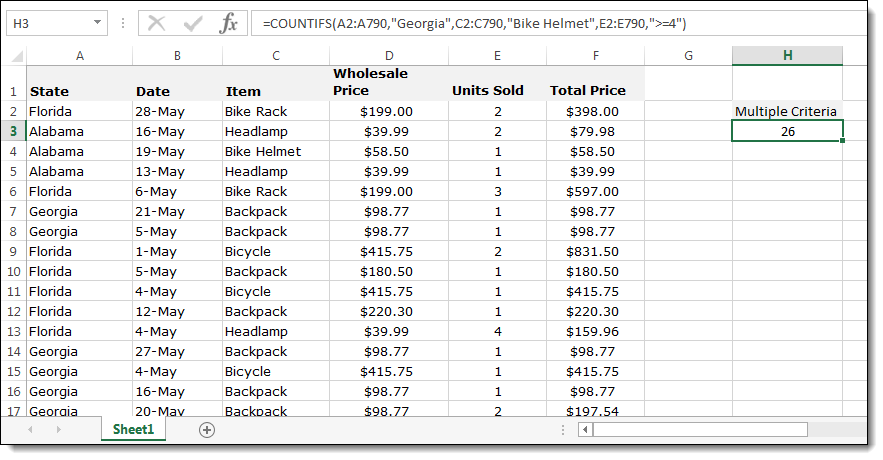
Wildcard example: We want to learn how many orders from Alabama included items with names that started with "Bike". The asterisk wildcard matches any characters after "Bike," so this will quickly tally both Bike Racks and Bike Helmets:
Range 1 = A2:A790 Criteria 1 = "Alabama"
Range 2 = C2:C790 Criteria 2 = "Bike*"
The resulting formula would be:
=COUNTIFS(A2:A790,"Alabama",C2:C790,"Bike*")
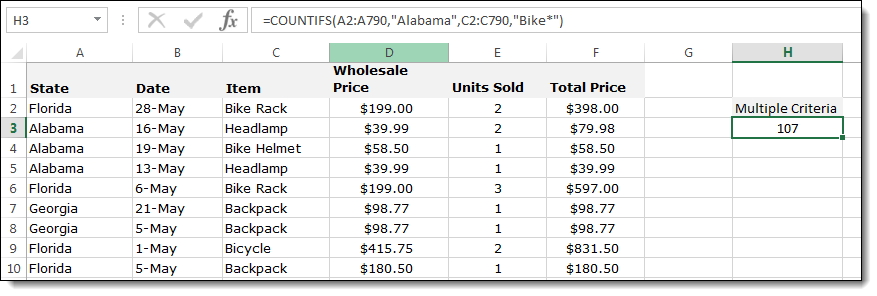
You can also use the question mark (?) wildcard to match a single character. For example, "B??e" would match "Bike" and "Bore" but not "Brake."
Cell reference example: Instead of hardcoding values into your formula, you can use cell references to make your COUNTIFS dynamic. If cell G1 contains "Georgia" and cell G2 contains "Bike Helmet," your formula becomes:
=COUNTIFS(A2:A790,G1,C2:C790,G2)
To combine a cell reference with a comparison operator, use the ampersand (&) to concatenate. If cell G3 contains the number 4:
=COUNTIFS(A2:A790,G1,C2:C790,G2,E2:E790,">="&G3)
This approach is especially useful when you want users to change filter values without editing the formula itself. If you also want to visually highlight cells that meet specific conditions, conditional formatting based on another column pairs well with dynamic COUNTIFS formulas.
Counting with OR Logic (Any Criterion Can Match)
The COUNTIFS function uses AND logic by default, meaning every condition must be true. But what if you need OR logic, where any one of several conditions qualifies a cell for the count? There are two reliable approaches.
Method 1: Add separate COUNTIFS formulas with "+"
To count orders from Georgia OR Alabama:
=COUNTIFS(A2:A790,"Georgia") + COUNTIFS(A2:A790,"Alabama")
This simply adds the results of two independent counts. You can extend this pattern with as many "+" additions as you need.
Method 2: SUM with an array constant
A more compact approach uses the SUM function and an array constant inside COUNTIFS:
=SUM(COUNTIFS(A2:A790,{"Georgia","Alabama"}))
The curly braces create an array of criteria, and SUM totals the individual counts. This method scales well when you have many OR conditions.
- Method 1 is easier to read and troubleshoot, especially for beginners.
- Method 2 is more compact and keeps formulas shorter when you have several OR values.
- Both methods can be combined with additional AND criteria. For example, to count Bike Helmet orders from Georgia OR Alabama: =SUM(COUNTIFS(A2:A790,{"Georgia","Alabama"},C2:C790,"Bike Helmet"))
COUNTIFS with Dates and Numeric Ranges
Two of the most common real-world uses for COUNTIFS involve filtering by date range or counting values between two numbers. Both scenarios rely on pairing comparison operators with your criteria.
Counting dates within a range: Suppose column B contains order dates and you want to count orders placed in 2024:
=COUNTIFS(B2:B790,">="&DATE(2024,1,1),B2:B790,"<="&DATE(2024,12,31))
Notice that both criteria reference the same range (B2:B790). This is perfectly valid and is how you apply multiple criteria to a single column.
Tips for handling dates in COUNTIFS:
- Use the DATE function (DATE(year, month, day)) for reliable date criteria that won't break across regional settings. Once you have your date-filtered counts, you can create charts with date or time data to visualize trends.
- You can also enclose date strings in quotes, such as ">=1/1/2024", but this format depends on your system's date settings.
- Use TODAY() for dynamic criteria. For example, to count dates in the last 30 days: =COUNTIFS(B2:B790,">="&TODAY()-30,B2:B790,"<="&TODAY())
Counting numbers between two values: To count orders where units sold were between three and 10 (inclusive):
=COUNTIFS(E2:E790,">=3",E2:E790,"<=10")
Again, the same range appears twice with different comparison operators to create a "between" condition. You can substitute cell references for the numbers to make the formula dynamic, such as ">="&H1 and "<="&H2. For related numeric analysis, Excel finance formulas apply similar logic to budgeting and forecasting calculations.