Formulas
Jul 29, 2026
How to Hide Formulas in Excel and Protect Your Spreadsheet
Key Takeaways
- Hiding formulas in Excel prevents the formula bar from displaying cell formulas, so recipients see only the calculated values.
- The process requires three steps: select cells, apply the Hidden property via Format Cells and protect the sheet.
- Sheet protection must be enabled for the Hidden property to take effect; without it, formulas remain visible.
- You can reverse the process at any time by unprotecting the sheet and unchecking the Hidden property.
Why Hide Formulas in Excel
Excel makes it easy to decipher why a formula produces its result. When you click on a cell, the formula is displayed in the formula bar. If that's not enough, you can select the Formulas ribbon and click Evaluate Formulas for a step-by-step walkthrough.
But what happens when you don't want the formulas displayed? When you hide formulas in Excel, the formula bar displays blank (or only the calculated value) when someone selects a hidden-formula cell. This gives you full control over what recipients can see. There are several common reasons to hide formulas in Excel and only display the value:
- Proprietary calculations: On occasion you may need to send the same spreadsheet to a list of competing vendors. You don't want them to know how other producers' rates are calculated.
- Preventing accidental edits: On occasion you may need to send the same spreadsheet to a list of competing vendors. You don't want them to know how other producers' rates are calculated.
- Preventing accidental edits: Complex formulas are easy to break with a stray keystroke. Hiding and locking them keeps your logic intact.
- Reducing visual clutter: Long or nested formulas in the formula bar can overwhelm non-technical users who only need to see results.
- Confidentiality and compliance: Finance, HR and legal teams often share workbooks that contain sensitive business logic—from financial formulas to payroll models—that must stay out of view.
This process works in Excel for Microsoft 365 and other recent desktop versions of Excel. Luckily, Excel makes it fairly simple to hide formulas. Just follow the steps below.
Understanding Locked vs. Hidden in Excel
Before you begin, it helps to understand two cell-level properties that control what users can do with your spreadsheet. The Locked property prevents users from editing a cell's contents, while the Hidden property (sometimes called the Excel hidden property) prevents users from seeing the cell's formula in the formula bar. Both require sheet protection to be active before they take effect.
| Locked | Hidden | |
|---|---|---|
| What it does: | Prevents editing of cell contents | Prevents formula from appearing in the formula bar |
| Default state: | On (checked by default for all cells) | Off (unchecked by default for all cells) |
| When to use: | When you want to lock formulas in Excel so users cannot change them | When you want to hide formulas in Excel so users cannot see the underlying logic |
| Requires sheet protection: | Yes | Yes |
With that foundation in place, here is how to hide and protect your formulas in three phases.
Unprotect the Sheet
1) On the Review ribbon, find the button labeled either Protect Sheet or Unprotect Sheet.
2) If the button is labeled Protect Sheet, no action is needed — the sheet is already unprotected.

3) If the button is labeled Unprotect Sheet, then click it. The sheet is now unprotected.
Hide the Formulas
By default, when you click on a cell, its formula appears in the formula bar.

To hide formulas:
1) Select the cells for which you want to hide the formulas.
2) Right-click the cell (or cells) and choose Format Cells.
3) In the Format Cells dialog box, click the Protection tab.
4) Check the Hidden box.
5) Note: Hidden is what prevents the user from seeing the formula. Locked prevents the user from changing the contents of the cell. Locked is set by default.

6) Click OK.
Protect the Sheet
Important Step: Setting the cell format to hidden has no effect until you protect the sheet!
- On the Review ribbon, click Protect Sheet.
- In the Protect Sheet dialog box, type a password. No one (including yourself) will be able to unprotect the sheet to make changes without typing the password, so do not forget the password!

- Notice that by default the Select locked cells and Select unlocked cells checkboxes are selected. If you select OK now, that user cannot format, delete, insert or edit, whether those cells are locked or unlocked. If you want your users to do any of these operations for unlocked cells, then check them here.
- Click OK.
- In the Confirm Password dialog box, Excel asks you to retype the password you selected. This prevents a typographical error in the password from locking up your spreadsheet forever. Retype the password and click OK.
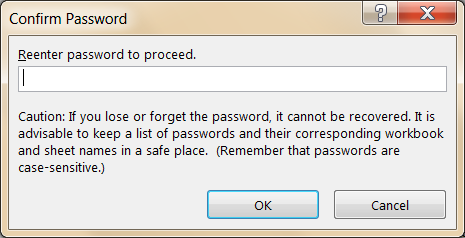
That's it! The formulas in your worksheet are now protected, and your users cannot see or edit the formulas. To verify it, click on a formula:
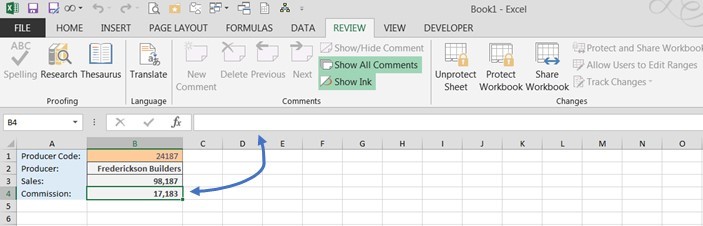
The formula no longer appears in the formula bar.
How to Unhide Formulas and Remove Sheet Protection
If you need to unhide formulas in Excel and make them visible again, you can reverse the process in a few steps:
- Go to the Review tab and click Unprotect Sheet. Enter the password you set when you protected the sheet.
- Select the cells that contain the hidden formulas. To select all cells at once, press Ctrl+A.
- Right-click the selection and choose Format Cells, then go to the Protection tab.
- Uncheck the Hidden checkbox. If you also want to allow editing, uncheck the Locked checkbox.
- Click OK. The formulas are now visible again in the formula bar whenever you select those cells.
If you want to keep the sheet protected after making your changes, return to the Review tab and click Protect Sheet to reapply protection with a new or existing password.
Next Steps
Now that you know how to hide and unhide formulas, try some of the other options to customize the protection properties, such as unlocking only specific input cells. This allows you to send a spreadsheet out to multiple users with an input cell—B1 in this example, where the user would enter their producer code—yet prevent the user from accessing other cells. This is a convenient tool for distributing corporate results to company agents, employees or others while filtering the values so that each user can see only those for which they are authorized.
Strengthen Your Excel Skills with Pryor Learning
Hiding formulas is just one of many techniques that can make your spreadsheets more secure and professional. Pryor Learning offers live seminars and on-demand Excel courses that cover everything from foundational skills to advanced data analysis. With a PryorPlus membership, you get unlimited access to Excel training and hundreds of other professional development courses so you can keep building your skills at your own pace. For more hands-on walkthroughs, browse our full library of Excel tutorials and tips.