Basic Excel, Excel
Apr 13, 2026
Paste Special in Excel: 4 Tips and Tricks You'll Wish You'd Known Sooner


Key Takeaways
- Paste Special (Ctrl+Alt+V) gives you granular control over what gets pasted, including values only, formatting, formulas and more.
- Use Transpose to instantly swap columns and rows without rebuilding your data.
- Use the Multiply operation to convert negative numbers to positive (or vice versa) across an entire range in seconds.
- Skip Blanks and paste values solve two of the most common frustrations when copying data between sheets or workbooks.
What Is Paste Special in Excel?
There's a moment in everyone's experience with Excel when you are both fairly comfortable using the tool and at the same time recognize just how much more there is to learn. Sometimes it happens when you do a repetitive task and realize that there has to be an easier way that you're just not seeing.
One of those hidden time-saving gems is Paste Special, an advanced paste feature that lets you choose exactly what gets pasted into your destination cells. Instead of pasting everything (values, formulas, formatting, column widths and comments all at once), Paste Special lets you pick and choose. You can also perform math operations like Multiply or Add on your data as part of the paste, which opens up tricks that would otherwise take extra columns and formulas to accomplish.
There are three ways to open the Paste Special dialog box after you've copied a cell or range:
- Keyboard shortcut: Press Ctrl+Alt+V to open the dialog instantly
- Ribbon: Go to Home > Paste (dropdown arrow) > Paste Special
- Right-click: Right-click your destination cell and select Paste Special from the context menu
The dialog box organizes options into a Paste section (where you choose what to paste), an Operation section (where you can apply math) and a set of checkboxes for options like Transpose and Skip Blanks. Here are four less-known features that will save you time and, in the right circumstance, just might save the day.
Transpose Columns and Rows
You are comfortable with entering data, creating formulas and applying different forms of analysis. If data is in a table format, you're good. And then.... you realize that you really needed your columns to be rows and your rows to be columns. Maybe you have to work with data copied from an external source, or maybe you just didn't get it right the first time. Either way, you're stuck until it's fixed. Now what?
Before you spend an hour copying cells into a new table, try Copy/Paste Special. The Transpose option has just what you need, and you'll use it a lot.
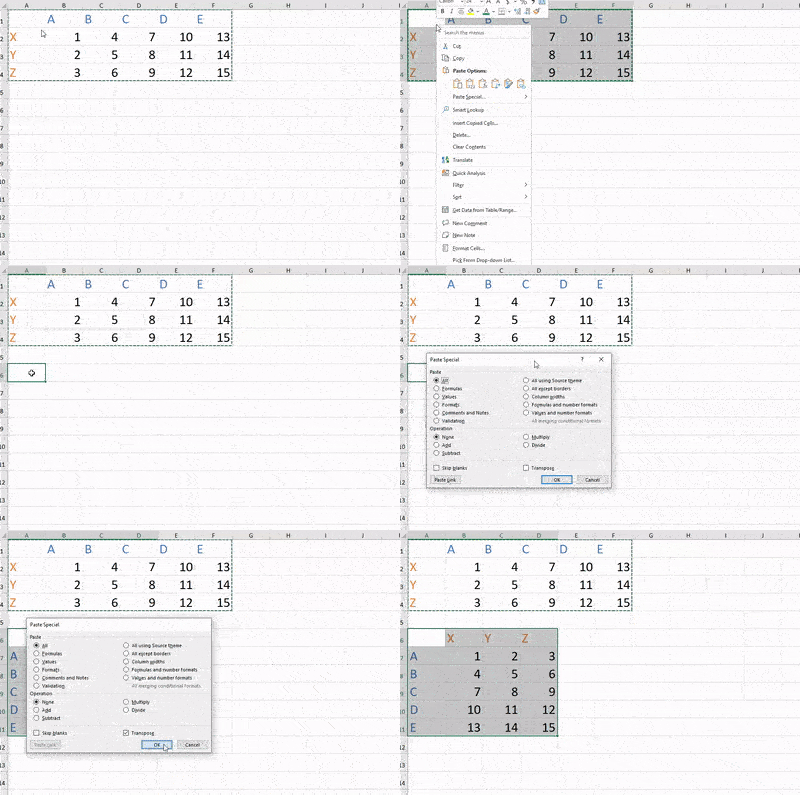
- Select the data you need to transpose
- Copy to the clipboard using Ctrl+C or right-click > Copy
- Place your cursor where you want the transposed data to go
- Right-click and select Paste Special (or press Ctrl+Alt+V)
- In the dialog, put a check by the Transpose checkbox
- Click OK
Excel swaps your rows and columns, and you can get on with your analysis. This will come in especially handy when you advance to PivotTables and are working with complex analysis where the formatting of your data is key.
Skip Blanks
You are familiar with how to copy and paste cells into new locations, but have just run into a new situation: You have a column of new information that needs to be incorporated into an existing column...but not every value has changed. Look at this example:
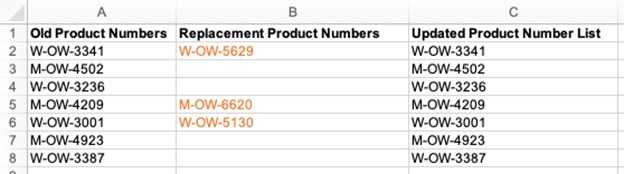
You have Old Product Numbers in column A, but only a few rows in column B need to be updated into column C. You need a way to paste ONLY the cells that have information in them and leave the rest alone.
Paste Special can do this.
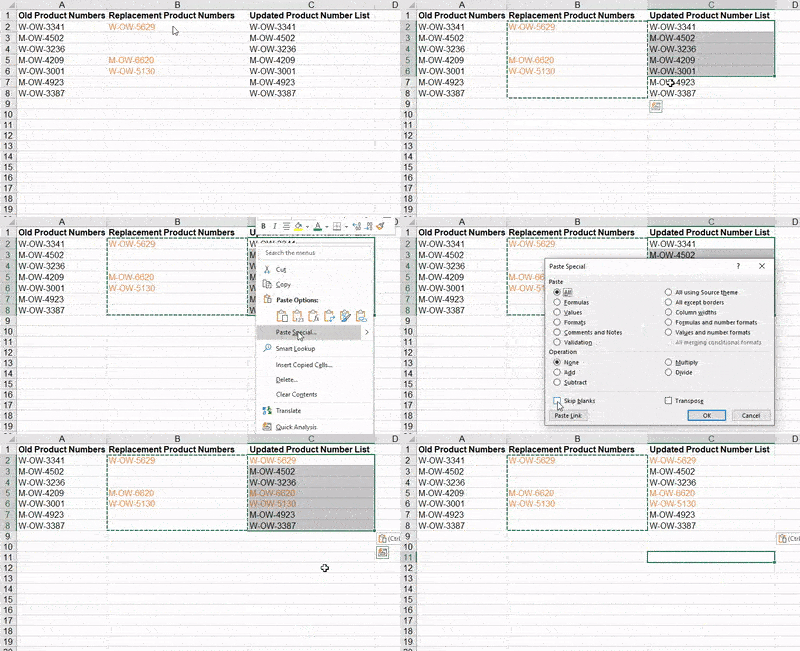
- Select the range of cells to copy, including the blanks
- Hit Ctrl+C or right-click and choose Copy. The selection's borders become a dotted marquis letting you know it is the active copied range
- Select the range of cells you want to update
- Right-click and select Paste Special (or press Ctrl+Alt+V)
- In the dialog, put a check by the Skip Blanks checkbox
- Click OK
Excel pastes the source cells over the destination cells if they contain data and leaves the destination cell unchanged if the source cell is blank. This is a much faster way to copy data than from cell to cell when there are blanks in a column.
Convert Negative Numbers to Positive (and Vice Versa)
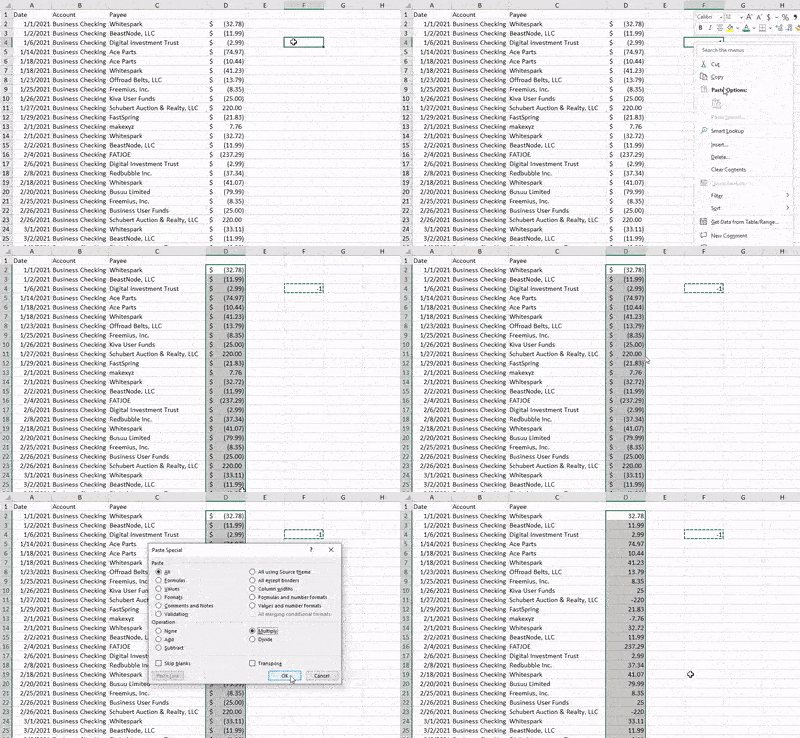
You are comfortable importing or copying data from multiple sources and combining them into larger sheets of data for analysis. And then... you realize that your sources are using different accounting standards and you need to convert an entire column of numbers from negative to positive, or vice versa. Here is an example: You have imported bank statement data and want to combine it with credit card data to get a complete report of all transactions your business spent money on in a given month. The bank uses positive numbers for deposits and negative numbers for expenses. The credit card, however, uses positive numbers for purchases and negative numbers for payments. You want to change the credit card purchases to negative numbers so you can total the amount you have spent.

To convert your negative numbers to positive numbers, multiply them by negative one using the Paste Special Multiply feature:
- In a helper cell, type -1
- Select the helper cell and hit Ctrl+C or right-click and choose Copy. The cell borders become a dotted marquis letting you know it is the active copied cell
- Select ALL the cells you want to convert
- Right-click and select Paste Special (or press Ctrl+Alt+V)
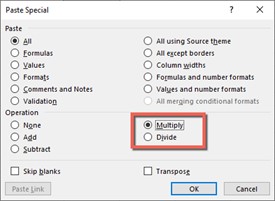
- In the dialog, click the Multiply radio button in the Operation section
- Click OK
Excel will multiply all selected cells by the value in your copied cell, changing them only by their negative or positive value. This is far easier than retyping or creating an entire helper column to multiply by negative one.
Paste Values
You have really dug into Excel and created beautiful sheets full of formulas. Then, you run into a case when you want to build upon or share your results without referencing the entire worksheet. You might want to copy just the results of a calculation into a new workbook so that others can see your data without giving away a proprietary method of calculating it, or being forced to include additional data. Consider this example:
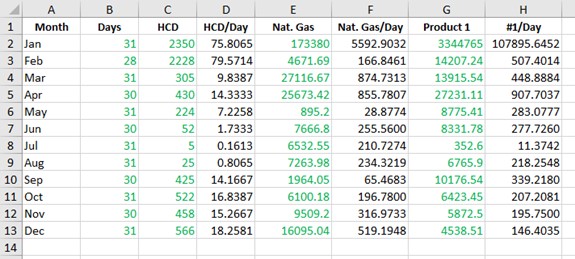
The green numbers represent source data. Black numbers show calculations. By default, Excel will copy the formulas and try to adapt cell references to the pasted location. So, if we want to share only the data in G & H columns, for example, we would get errors – zeroes – because the copied formula does not have the original B2 column to pull from in the new sheet.
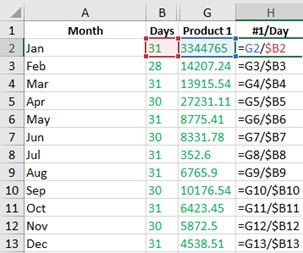
To copy and paste ONLY the values, or results, of the cells:
- Select the cells to copy and hit Ctrl+C or right-click and choose Copy. The selection's borders become a dotted marquis letting you know it is the active copied range
- Place your cursor where you want the data to go
- Right-click and select Paste Special (or press Ctrl+Alt+V)
- In the dialog, click the Values radio button in the Paste section
- Click OK
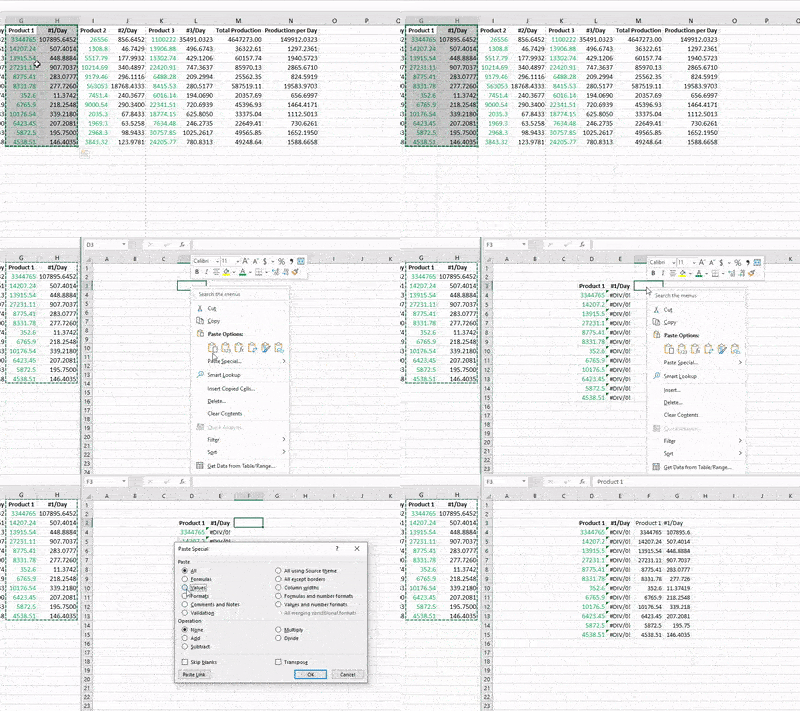
Excel copies only the results into the new location. Your destination results will no longer link to the original data through a formula, so do not use this method if you want the results to reflect source data changes. But, you now have a clean table of just numbers to build new analysis upon.
Paste Special Options at a Glance
The four tricks above are just the beginning. Here is a quick reference for the full set of Paste Special options available in the dialog box:
| Option | What It Does | When to Use It |
|---|---|---|
| All | Pastes everything (values, formulas, formatting, comments) | Default paste behavior when you need an exact copy |
| Values | Pastes only the calculated results, no formulas or formatting | Sharing results without exposing formulas or source data |
| Formulas | Pastes formulas but not cell formatting | Reusing calculations in a differently formatted sheet |
| Formats | Pastes only cell formatting (fonts, colors, borders) | Applying consistent formatting across ranges |
| Comments | Pastes only cell comments/notes | Transferring reviewer feedback without changing data |
| Column Widths | Pastes only the column width settings | Matching layout between sheets without affecting data |
| Transpose | Swaps rows and columns | Restructuring data orientation for analysis or reporting |
| Skip Blanks | Skips blank cells in the copied range during paste | Updating partial data into an existing range |
| Add | Adds copied values to destination values | Incrementing a range of numbers by a fixed amount |
| Subtract | Subtracts copied values from destination values | Reducing a range of numbers by a fixed amount |
| Multiply | Multiplies destination values by the copied value | Converting units, flipping signs or applying percentage changes |
| Divide | Divides destination values by the copied value | Scaling down values or converting units |
Build Your Excel Skills with Pryor Learning
Paste Special is just one of many time-saving features hiding in Excel. The more you explore, the more you'll find advanced tips and tools that turn tedious manual work into quick, confident actions. Pryor Learning offers Excel training designed to help you work smarter at every skill level:
- Live virtual seminars led by expert instructors
- On-demand courses you can take at your own pace
- Full access to the Excel training library through PryorPlus





